
TikTok gift reactions
Open Automate > TikTok Gift Reactions to configure automatic reactions. These entries are separate from the pads you operate manually in Soundboard. Enable Soundboard and gift sounds in Features under System if the page is hidden.
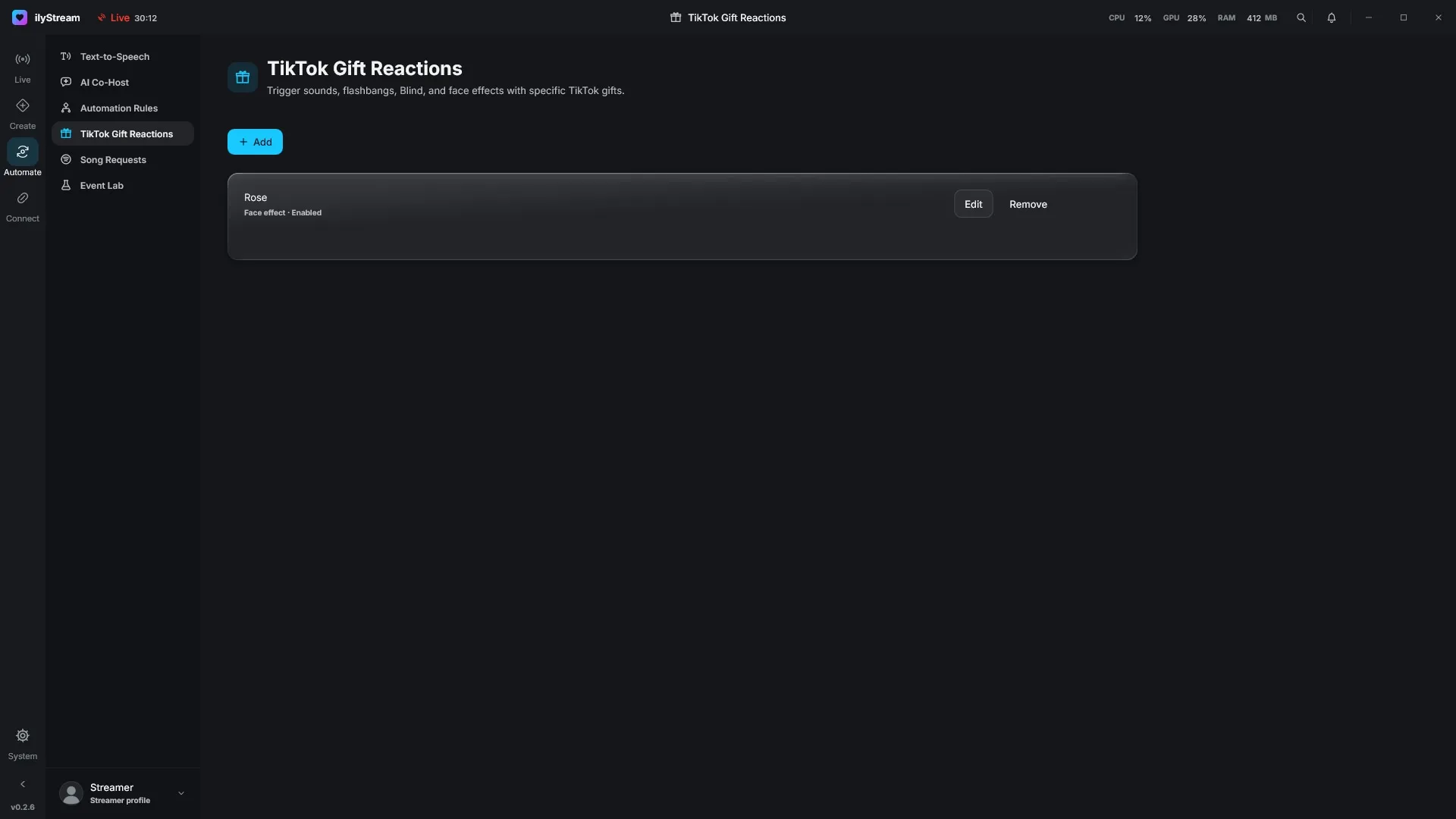
- Choose Add and select a specific TikTok gift by name or ID.
- Choose a local sound, an effect, or both. Effects include Flashbang, Blind and face effects; configure the controls for the chosen effect.
- Set volume, cooldown and whether the entry is enabled.
- Save the reaction and test it before using it during a broadcast.
Face effects need the relevant camera source and, where required, the face tracking pack installed from Features. Sound follows the Soundboard mixer path; check Program and headphone routing. A sound-only test cannot establish that a configured camera or display effect is visible in the intended output.
The effect can be used without a sound, and a sound can be used without an effect. Missing files, unavailable monitors and unsupported camera setup need attention before the reaction is ready. Keep bright display effects and their volume appropriate for your own setup and audience.
Use Event Lab and automation rules to trace the incoming event and resulting actions. TikTok chat/events must be connected to receive real gifts; streaming video through the StreamElements dock is a separate connection.