
Recordings and replay
Choose recording settings
Section titled “Choose recording settings”Open the Recording tab in Settings > Broadcast Defaults. Keep Follow broadcast defaults enabled to reuse the broadcast configuration, or turn it off to choose recording quality independently. Use Track 1 through Track 6 to configure the audio tracks you need, then choose Apply and save.
Check each track’s mixer routes before recording. Keeping a microphone and music on separate tracks helps when editing, but a player may select only one track by default. Include a complete mix on the track you plan to use for ordinary playback.
Choose the canvas in Broadcast Studio, then press Record. Stop the recording before opening it in Live → Recordings. Watch and listen to a short test before using the settings for a broadcast.
In Dual layout, choose the recording layout when prompted. During a recording, Pause leaves the file open and Resume continues in the same file without the paused interval. Pause is unavailable while the replay buffer shares the recording encoder. Watch the storage warnings and stop safely before the drive fills.
Recording pause and the layout prompt are included in the 0.2.3 preview.
Formats and codecs
Section titled “Formats and codecs”In Recording and replay settings, choose MP4 or MKV. MP4 remains the default for existing profiles. Recording quality can use H.264, HEVC or AV1 independently of your stream. Availability, supported dimensions and playback depend on the GPU, driver and installed Windows decoders. Standard live output and replay remain H.264. HDR recording uses the supported HEVC Main 10 path.
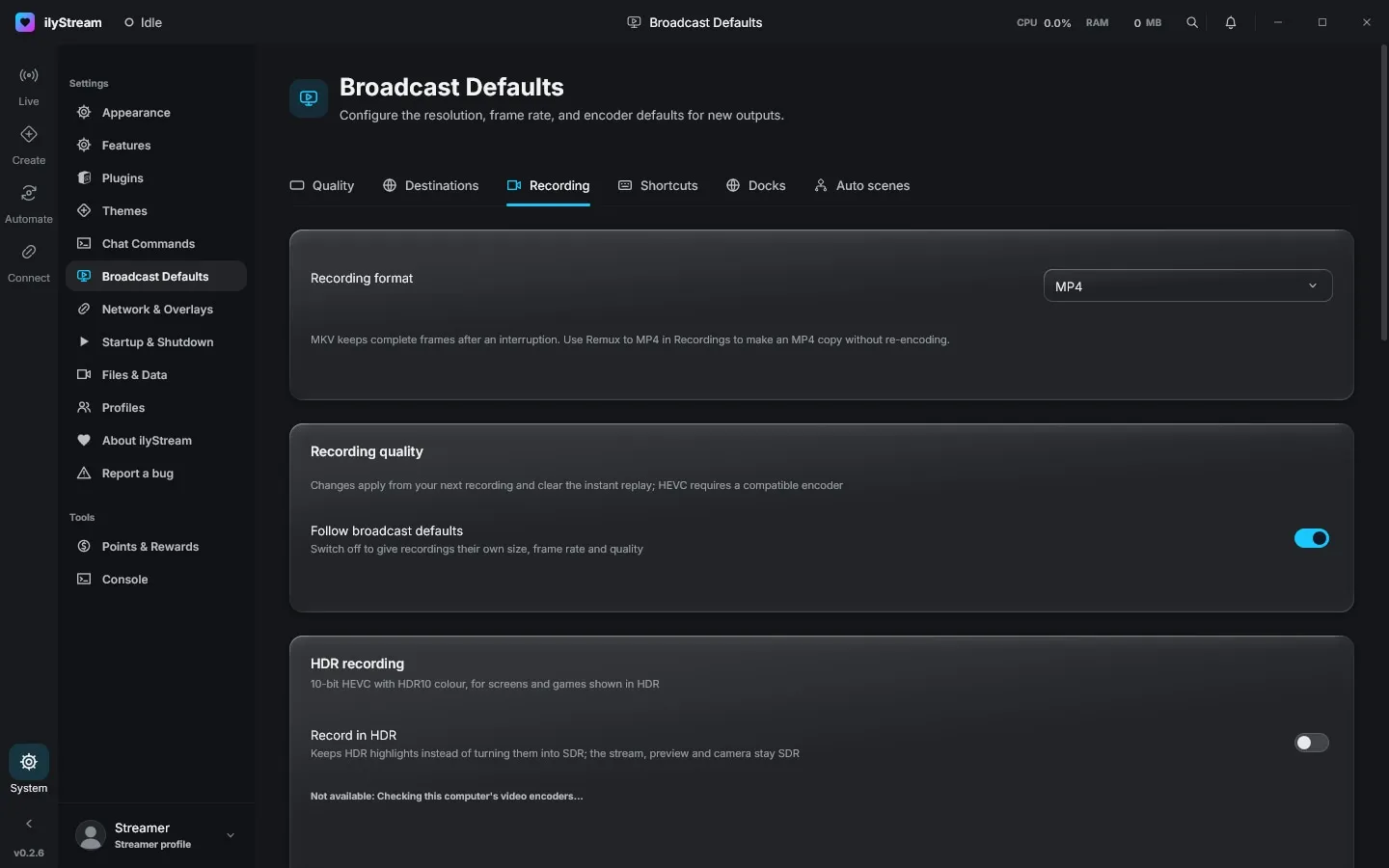
Native 0.2.6 interface capture with isolated sample settings.
HDR10 recording
Section titled “HDR10 recording”Enable Record in HDR in recording settings to preserve HDR highlights from a captured HDR screen or game. This requires an active HDR source and a supported 10-bit HEVC encoder. The page explains why HDR is unavailable; without the required source/encoder, recordings remain SDR.
HDR recordings use HEVC Main 10, BT.2020 and PQ, with MP4 or MKV as the container. Set SDR white in HDR for overlays/cameras and HDR peak for the recording’s brightness range. Preview, streaming and virtual cameras stay SDR. Instant replay is off while HDR recording is enabled. Review the file in an HDR-capable player/display; SDR playback is not a check of its HDR appearance.
Split recordings
Section titled “Split recordings”Set duration or file-size limits in recording settings to split a longer recording into files. Check available disk space and the audio routes for every segment. Pausing leaves the current file open; splitting creates a new segment.
Remux MKV to MP4
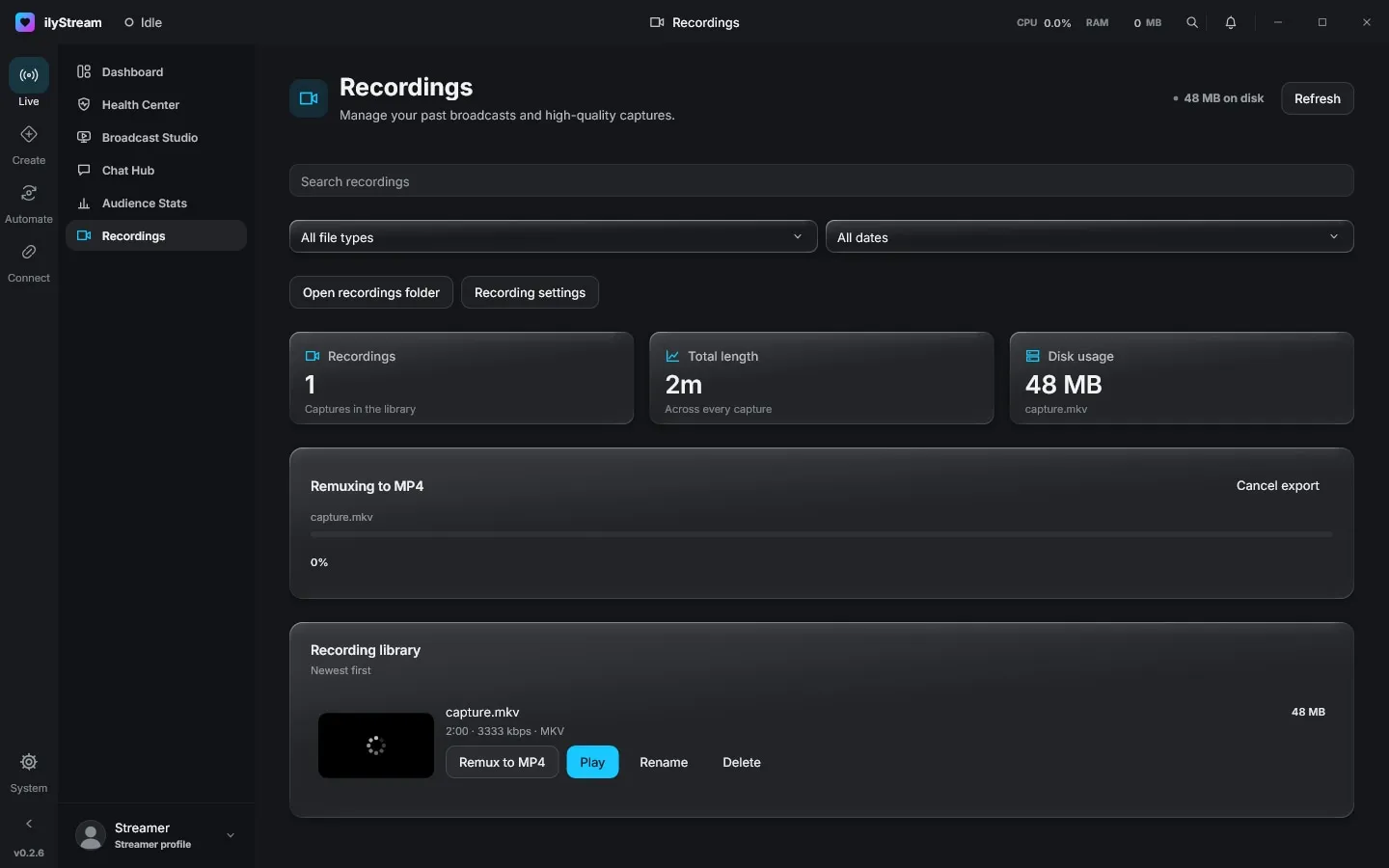
Section titled “Remux MKV to MP4”In Live → Recordings, choose an ilyStream MKV file and Remux to MP4. This copies encoded video and AAC audio without re-encoding and keeps the source. Progress and cancellation use the existing export workflow. Existing destination files are preserved. This supports ilyStream recordings with one supported video track and up to six numbered stereo AAC routes; it is not a general converter for third-party MKV files.
Save a replay
Section titled “Save a replay”The Studio toolbar’s Replay menu provides Start replay, Stop replay, Save replay and Edit replay. Recording and replay settings opens the same configuration page. Start replay before the moment you want to retain, then save a replay after it happens.
Replay uses local memory and disk resources. Choose settings that your PC can maintain alongside capture, effects, streaming and normal recording.
Edit a recording
Section titled “Edit a recording”Open Live → Recordings and choose a recording. The player and editor support trimming a range, cropping, stepping through frames, saving a snapshot, adjusting audio and exporting a new file with resolution and quality controls. Keep the original while preparing the export, then review the exported picture and sound.
Interrupted recordings
Section titled “Interrupted recordings”MP4 recordings retain completed fragments in an interrupted .partial.mp4 file;
the library does not offer MP4 recovery. Preserve that original for technical recovery.
Interrupted .partial.mkv recordings appear in the library and can be recovered
with Remux to MP4. Only complete media preceding the truncated tail can be
copied. Keep the original and review the recovered picture and every audio route.
Media that was never written cannot be recreated.
See the audio mixer for Program and headphone routing.