
StreamElements multistreaming
StreamElements in ilyStream 0.2.6 handles video multistreaming as well as tips and events. Its dock prepares your destinations; ilyStream’s own encoder sends the video and audio. You can send a vertical canvas to TikTok and a horizontal canvas to Twitch or YouTube at the same time.
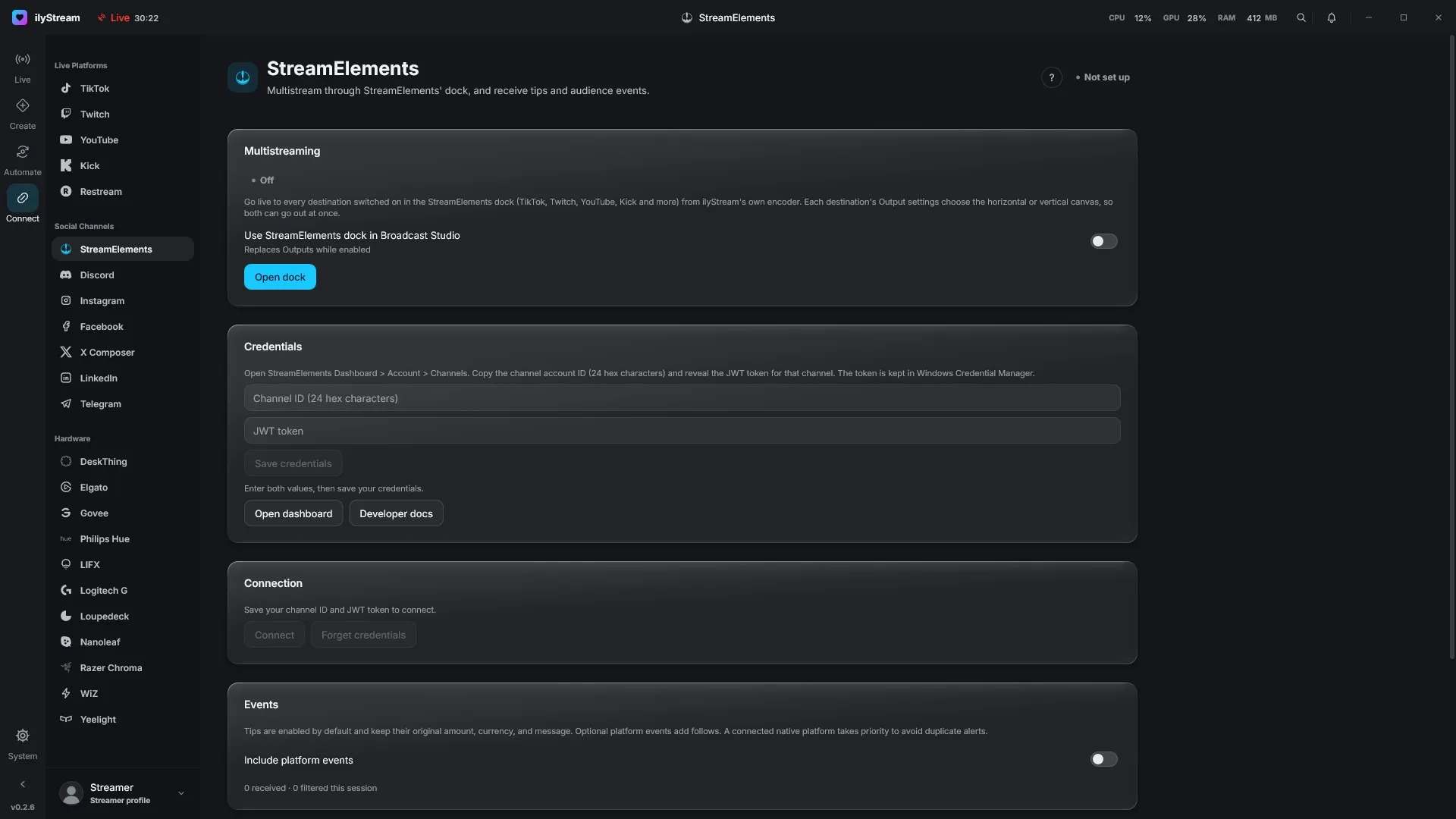
Native 0.2.6 capture with illustrative data. Account services are not running in this capture.
Set up the streaming dock
Section titled “Set up the streaming dock”- Enable Social and community connections in Features under System, if needed, then choose Apply and save.
- Open Connect > Social Channels > StreamElements and choose Open dock.
- Sign in to StreamElements in its sign-in window and connect the destinations you want to use, such as TikTok, Twitch, YouTube or Kick.
- Switch on each intended destination. In each destination’s Output settings, choose ilyStream’s horizontal or vertical canvas.
- Select H.264 in Broadcast settings. Review both canvases and your audio mix.
- Choose Go live and complete each destination’s title, category and other setup prompts. Confirming the setup starts the stream.
Use StreamElements dock in Broadcast Studio replaces the regular Outputs dock while enabled. You can also manage it from the StreamElements connection page. Platform eligibility and the destinations available to your StreamElements account still apply. Connecting TikTok chat or signing in to its profile card is a separate operation from preparing a video broadcast in this dock.
End the broadcast
Section titled “End the broadcast”Use End stream and wait for shutdown to finish. TikTok needs both the video output and its LIVE room to close. If ilyStream reports Shutdown pending, use Retry TikTok room shutdown, or end LIVE on TikTok and check the app’s status. Closing the video output alone does not establish that the TikTok room ended.
Tips and platform events
Section titled “Tips and platform events”The channel-ID/JWT connection below the multistreaming controls is separate from the streaming dock’s sign-in. It receives tips and optional follow events for alerts, statistics and automation rules.
- Find the account/channel details under StreamElements Dashboard → Account → Channels.
- Enter the Channel ID (24 hexadecimal characters) and JWT token in ilyStream.
- Choose Save credentials, then Connect. When a credential is already stored, the save action is called Replace credentials.
Treat the JWT as a private credential. Do not put it in chat, screenshots, portable show descriptions or support reports.
Choose events
Section titled “Choose events”Tips are enabled by default. Turn on Include platform events to receive the currently supported follow events as well. Check your existing native platform connections and automation rules before enabling another route for the same kind of event.
Use Automation Rules to inspect how received events trigger actions. A successful local connection does not prove a real tip or follow reached the audience; review the actual event and its resulting action in your setup.
Disconnect
Section titled “Disconnect”Disconnect stops the event connection while retaining the saved credential. Forget credentials removes those event credentials. These controls are separate from ending a broadcast or signing out of the streaming dock. If the provider rejects a token, replace it with a current credential for the intended channel.