'/%3e%3cpath%20fill='%2305070d'%20d='M32%2044.5c-.9-.6-14-8.6-14-17%200-4.1%203.1-7.3%207-7.3%202.9%200%205.4%201.7%207%204.3%201.6-2.6%204.1-4.3%207-4.3%203.9%200%207%203.2%207%207.3%200%208.4-13.1%2016.4-14%2017z'/%3e%3c/svg%3e)
Overlays and widgets
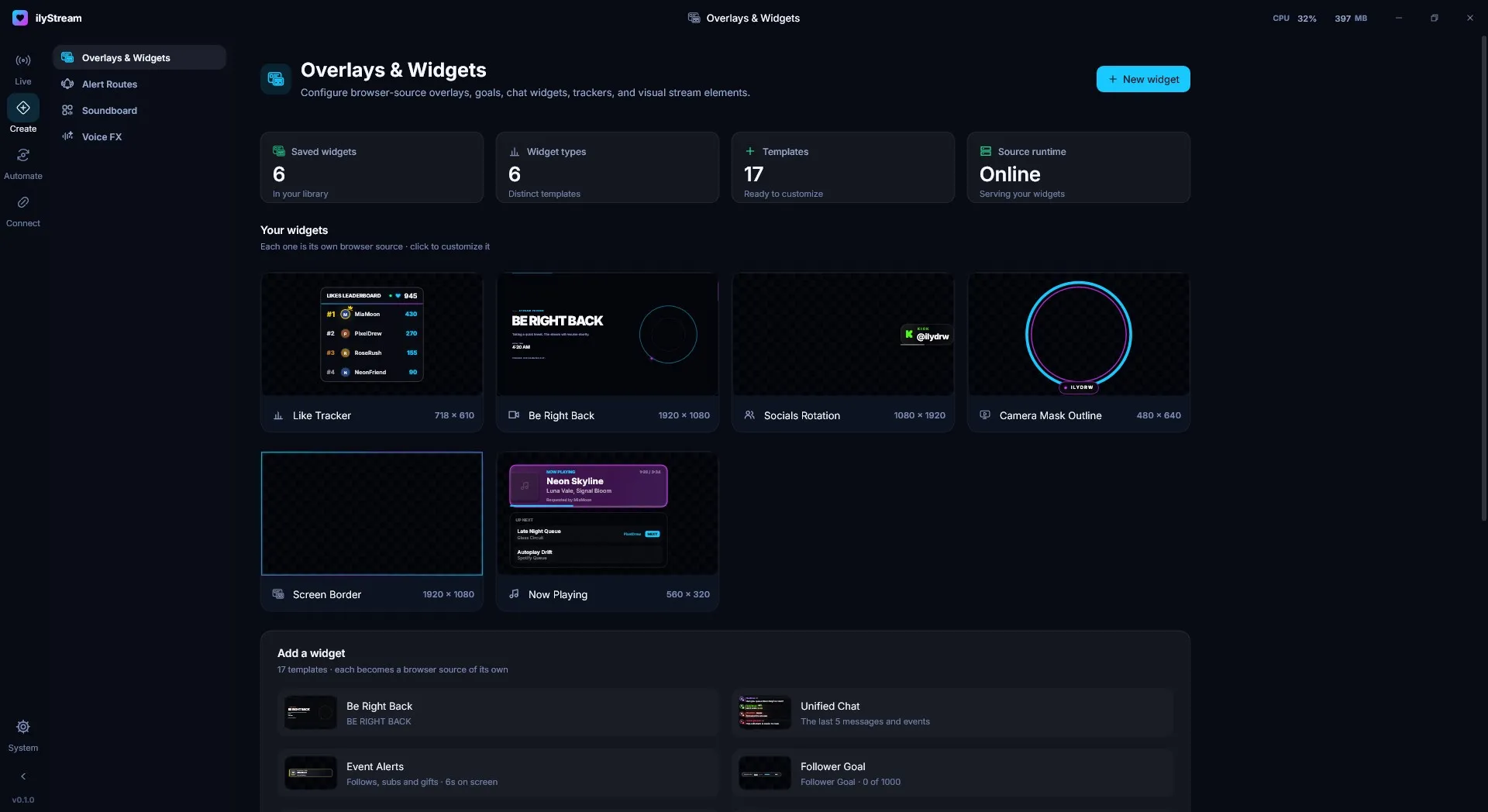
Create → Overlays & Widgets is where you build the visual elements of your stream: overlays, goals, chat widgets, trackers and more.
At a glance
Section titled “At a glance”The cards at the top of the page show:
| Card | Meaning |
|---|---|
| Saved widgets | Widgets in your library. |
| Widget types | How many distinct templates your widgets use. |
| Templates | Templates ready to customize. |
| Source runtime | Whether the runtime that serves your widgets is Online. |
Your widgets
Section titled “Your widgets”Every widget is its own browser source. Each card shows a live preview, the widget’s name and its size (for example 1920 × 1080). Click a widget to customize it.
Add a widget
Section titled “Add a widget”Choose a template under Add a widget, or press New widget at the top of the page. There are 17 templates, including:
| Template | What it’s for |
|---|---|
| Be Right Back | A full-screen break screen. |
| Unified Chat | The last messages and events from your chat. |
| Event Alerts | On-screen alerts for follows, subs and gifts. |
| Follower Goal | Progress toward a follower target. |
| Like Tracker | A leaderboard of who sent the most likes. |
| Socials Rotation | Your social handles, one after another. |
| Now Playing | The current song request and what’s up next. |
| Camera Mask Outline | A styled outline for a masked camera. |
| Screen Border | A border around the whole screen. |
Use a widget in your broadcast
Section titled “Use a widget in your broadcast”Widgets appear alongside cameras and captures in Broadcast Studio’s Sources panel. Add one to a scene like any other source, then position it on the canvas. See Scenes and sources.
© 2026 ilyStream