'/%3e%3cpath%20fill='%2305070d'%20d='M32%2044.5c-.9-.6-14-8.6-14-17%200-4.1%203.1-7.3%207-7.3%202.9%200%205.4%201.7%207%204.3%201.6-2.6%204.1-4.3%207-4.3%203.9%200%207%203.2%207%207.3%200%208.4-13.1%2016.4-14%2017z'/%3e%3c/svg%3e)
AI Co-Host
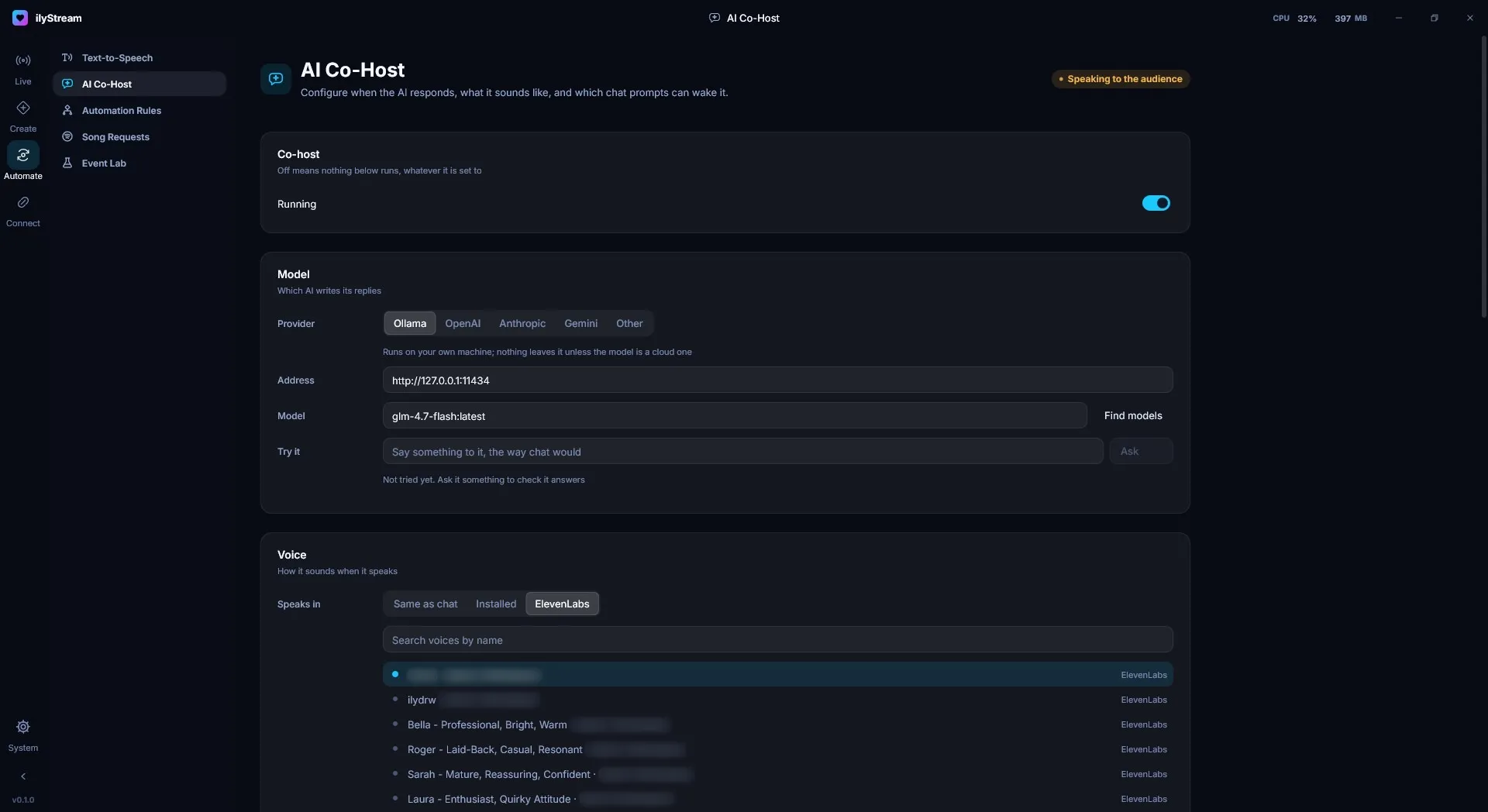
Automate → AI Co-Host configures when the AI responds, what it sounds like, and which chat prompts can wake it. The pill in the top-right corner shows what it’s doing, for example Speaking to the audience.
Turn it on or off
Section titled “Turn it on or off”The Co-host card has a single Running switch. Off means nothing on this page runs, whatever it’s set to.
Choose a model
Section titled “Choose a model”Under Model, pick the Provider that writes the co-host’s replies: Ollama, OpenAI, Anthropic, Gemini or Other.
Run it on your own machine with Ollama
Section titled “Run it on your own machine with Ollama”With Ollama, the co-host runs on your own machine; nothing leaves it unless the model you choose is a cloud one.
-
Install Ollama and download a model, for example:
Terminal window ollama pull llama3.2 -
In ilyStream, check the Address. Ollama’s default is
http://127.0.0.1:11434. -
Press Find models and choose the model you downloaded.
Use a hosted provider
Section titled “Use a hosted provider”Choose OpenAI, Anthropic, Gemini or Other to use a hosted model. The chat prompts that wake the co-host are sent to that provider under its terms.
Try it before your audience does
Section titled “Try it before your audience does”Type into Try it the way chat would, and press Ask. The line underneath tells you whether it has answered.
Under Voice, choose how the co-host sounds when it speaks:
- Same as chat — the voice Text-to-Speech uses.
- Installed — a voice installed on your PC.
- ElevenLabs — any voice from your saved ElevenLabs accounts. Search voices by name.