'/%3e%3cpath%20fill='%2305070d'%20d='M32%2044.5c-.9-.6-14-8.6-14-17%200-4.1%203.1-7.3%207-7.3%202.9%200%205.4%201.7%207%204.3%201.6-2.6%204.1-4.3%207-4.3%203.9%200%207%203.2%207%207.3%200%208.4-13.1%2016.4-14%2017z'/%3e%3c/svg%3e)
Song Requests
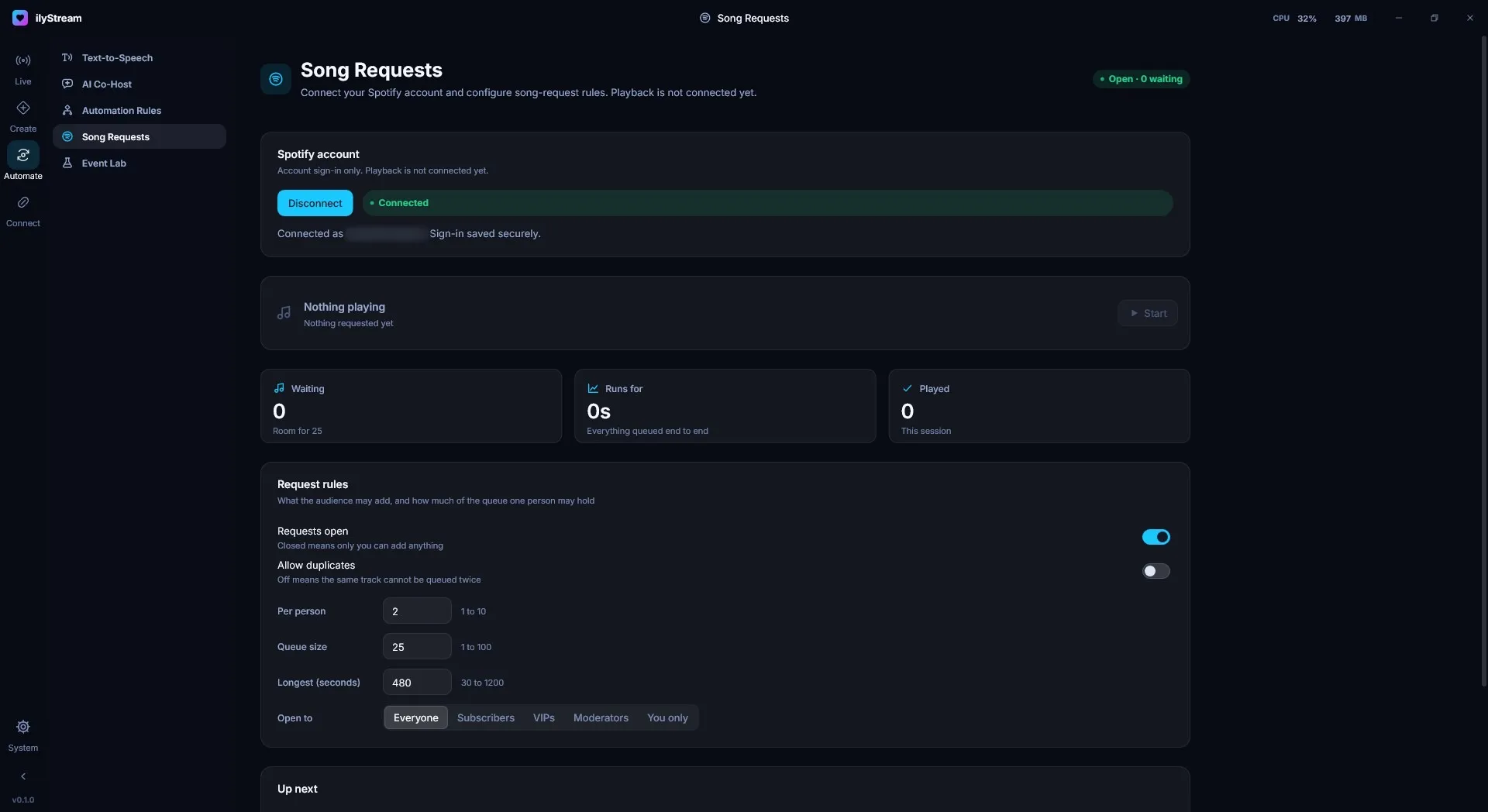
Automate → Song Requests connects your Spotify account and sets the rules for song requests. The pill in the top-right corner shows whether requests are open and how many are waiting, for example Open · 0 waiting.
Connect Spotify
Section titled “Connect Spotify”Under Spotify account, sign in with Spotify. Once connected, the card shows the account you’re signed in as. Your sign-in is saved securely. Press Disconnect to sign out.
The queue at a glance
Section titled “The queue at a glance”- Now playing shows the current request, with Start to begin.
- Waiting — how many requests are queued, and how much room is left.
- Runs for — how long everything queued takes to play end to end.
- Played — requests played this session.
- Up next lists the queue.
Request rules
Section titled “Request rules”| Rule | What it does | Range |
|---|---|---|
| Requests open | Closed means only you can add anything. | On / off |
| Allow duplicates | Off means the same track can’t be queued twice. | On / off |
| Per person | How many requests one person may have in the queue. | 1 to 10 |
| Queue size | The most requests the queue holds. | 1 to 100 |
| Longest (seconds) | The longest track that may be requested. | 30 to 1200 |
| Open to | Who may request: Everyone, Subscribers, VIPs, Moderators or You only. |
Show requests on stream
Section titled “Show requests on stream”Add the Now Playing widget from Overlays and widgets to show the current request, who asked for it, and what’s up next.
© 2026 ilyStream