
DeskThing companion
The ilyStream DeskThing 0.2.6 companion connects DeskThing screens to the native Windows app over your local network. Download the ZIP from Download → DeskThing companion.
Install
Section titled “Install”- Install the current Windows app from the download page. The companion follows the controls supported by the connected app.
- Use DeskThing server 0.11.13 or later and client 0.11.2 or later.
- Download the current DeskThing ZIP from that page, then import it through DeskThing’s app installation controls. Keep the ZIP intact; it contains the client, server module and app manifest.
- Open ilyStream on the connected DeskThing screen.
The ZIP is a DeskThing app, separate from the Windows installer. It is designed for Car Thing’s 800 × 480 display and DeskThing phone, tablet and desktop screens.
Update an existing companion
Section titled “Update an existing companion”Companion installations still using the old update feed need a one-time import of
the current ZIP from the download page in
DeskThing’s app installation controls. The app identity remains ilystream,
so this is an update to the existing companion. Future update discovery uses
the public ilyStream release feed.
After the import, open the companion and check its connection. If its previous pairing is rejected, choose Pair again and use a new code from the native Windows app.
The 0.2.6 companion matches ilyStream 0.2.6; its controls are unchanged from
0.2.4, which tightened pairing-token validation and malformed error handling. It keeps the existing Live, Sounds, Studio and Chat screens and the same
ilystream app identity.
Version 0.2.0 binds device grants to this installation’s protected controller identity. Older grants without that binding are retired when the identity is established; pair those devices again.
Pair with the PC
Section titled “Pair with the PC”- In the Windows app, open Connect → Hardware → DeskThing, enable Remote control and choose Pair new device.
- When DeskThing server runs on the same PC, keep the companion’s default 127.0.0.1:3738 address and enter the six-digit code. The code expires after five minutes. If the native remote-control port is different, edit the address to use that port. A previously saved address is retained.
- The Car Thing can use Wi-Fi while DeskThing server connects locally: the server module makes the requests, so its address refers to the PC running DeskThing server. The browser overlay address uses a different port.
Keep the PC and device on the same trusted network. Pairing exchanges the short code for a token held by the DeskThing server, which talks to ilyStream through local loopback HTTP and a live event stream. The token is kept with DeskThing app data; the device browser does not make the HTTP requests itself. No cloud account is needed for this pairing.
If DeskThing server runs on another computer, use the displayed HTTPS
address. Verify the native app’s controller certificate fingerprint, then
configure that verified CA for the Node process running DeskThing server, for
example with NODE_EXTRA_CA_CERTS, before restarting the server. Node needs a
PEM certificate; the downloaded .cer is DER. On Windows, after verifying
the original certificate’s SHA-256 fingerprint, convert it with
certutil and configure the
PowerShell session that will launch DeskThing server:
certutil.exe -encode .\ilystream-controller-trust.cer .\ilystream-controller-trust.pem$env:NODE_EXTRA_CA_CERTS = (Resolve-Path .\ilystream-controller-trust.pem).PathFully exit an already-running DeskThing server, then start it from that session so its Node process inherits the setting. Node reads the extra CA file when it starts; see Node’s CA configuration. Pairing, actions and the live feed all validate HTTPS; plaintext LAN control is refused. See Phone controller for certificate verification.
Screens and controls
Section titled “Screens and controls”| Screen | What it provides |
|---|---|
| Live | Platform/activity and current broadcast state. |
| Sounds | Soundboard decks and pads, playback feedback and stop-all. |
| Studio | Session, Scenes, Audio, Sources and More sections for the controls below. |
| Chat | The native chat/event feed, platform identities and scrollback. |
Scenes and pads refresh periodically and on reconnect. Unavailable actions show their failure instead of implying success. Spotify play/pause, skip and like are not offered because the native bridge does not implement those controls.
Studio controls
Section titled “Studio controls”The 0.2.6 companion’s Studio controls match the tools supported by the connected native app:
- Recording: start, stop, pause and resume, with the state actually reported by the PC. A requested pause and a confirmed pause are shown separately.
- Replay: start, stop, save or cancel replay capture.
- Streaming: review the confirmation before starting or stopping a broadcast.
- Studio Mode: check Preview and Program, prepare a scene, then use Take or Cut to change the output.
- Mixer: change gain and mute, mute stream audio, and see when a channel is silenced by the PC’s push-to-talk or push-to-mute key.
- Sources: show or hide a source and edit its transform or crop.
Controls the host does not support remain unavailable. Native 0.2.2 already has the existing scene, replay, mixer and source bridge; native 0.2.3 added recording pause discovery and push-silenced state. Check the actual status after sending an action rather than treating a button press as proof that the output changed.
See the companion screens
These are captures of the companion client with fictional sample data at Car Thing’s 800 × 480 size.
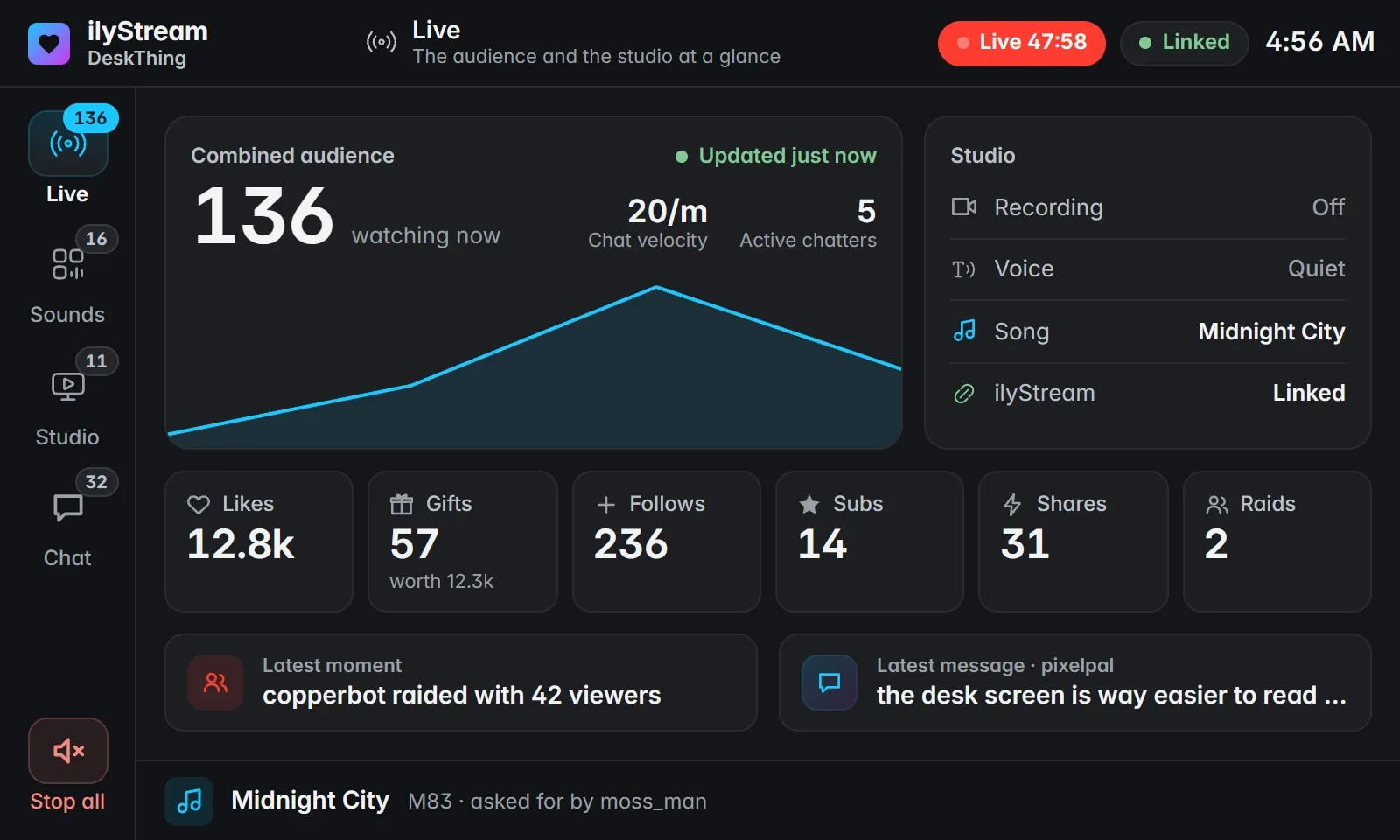
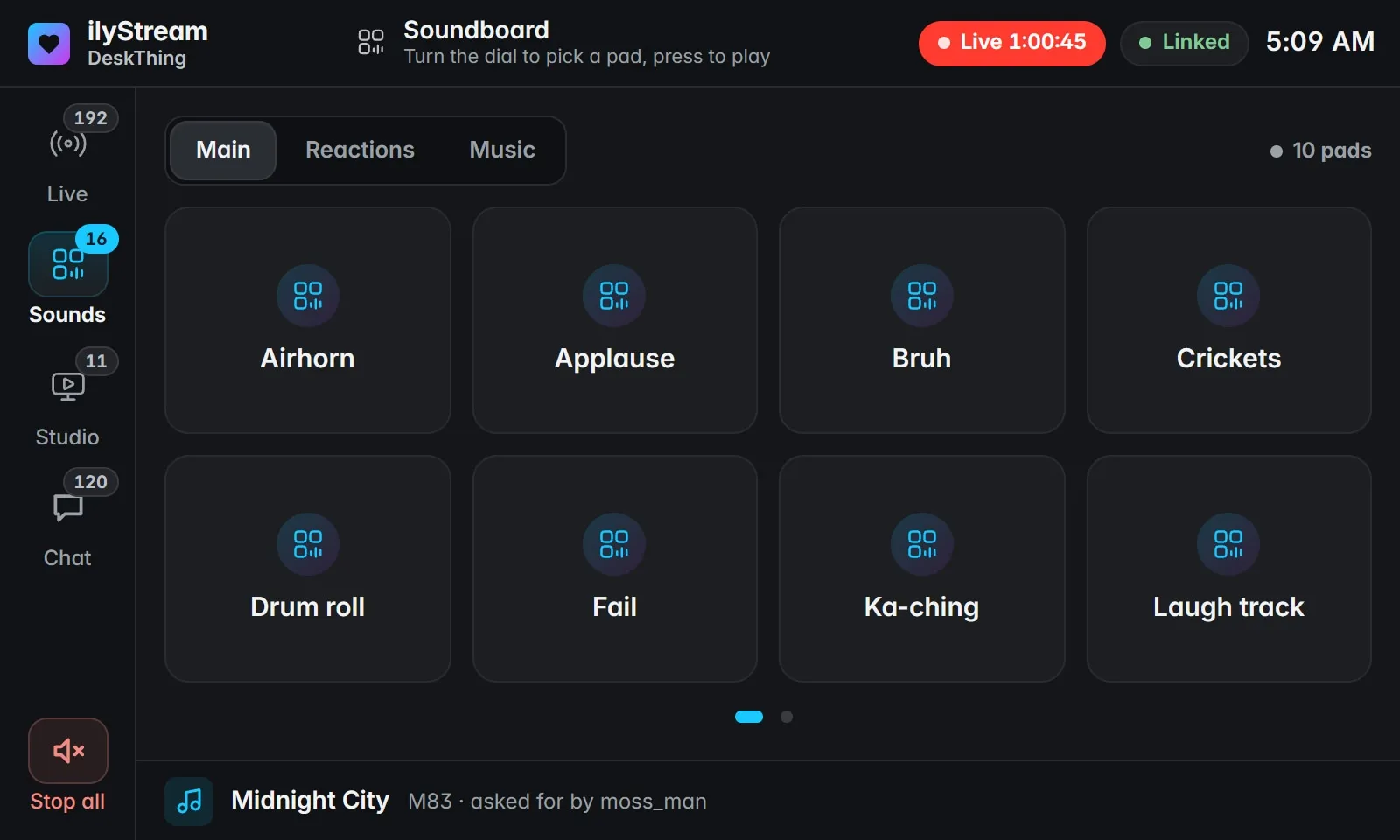
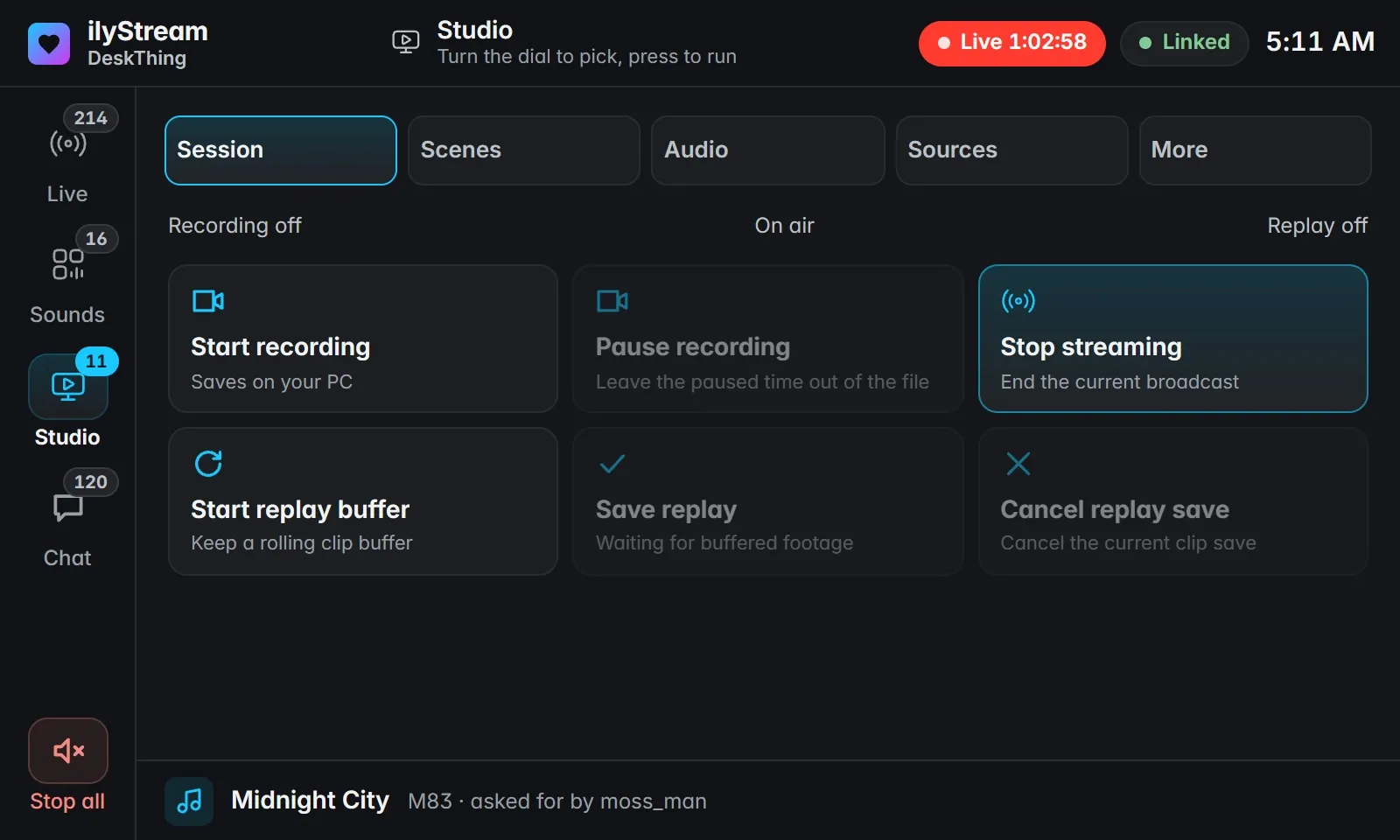
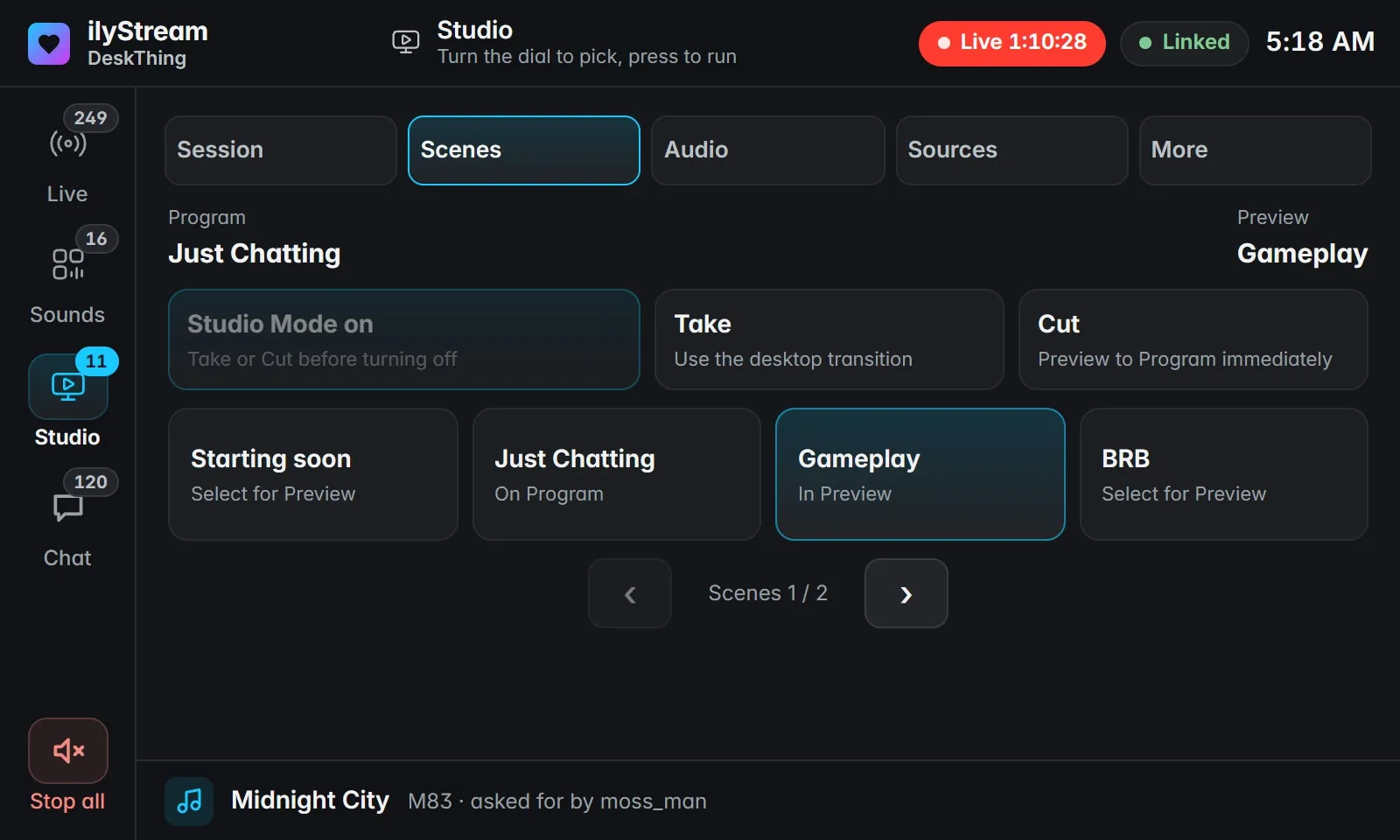
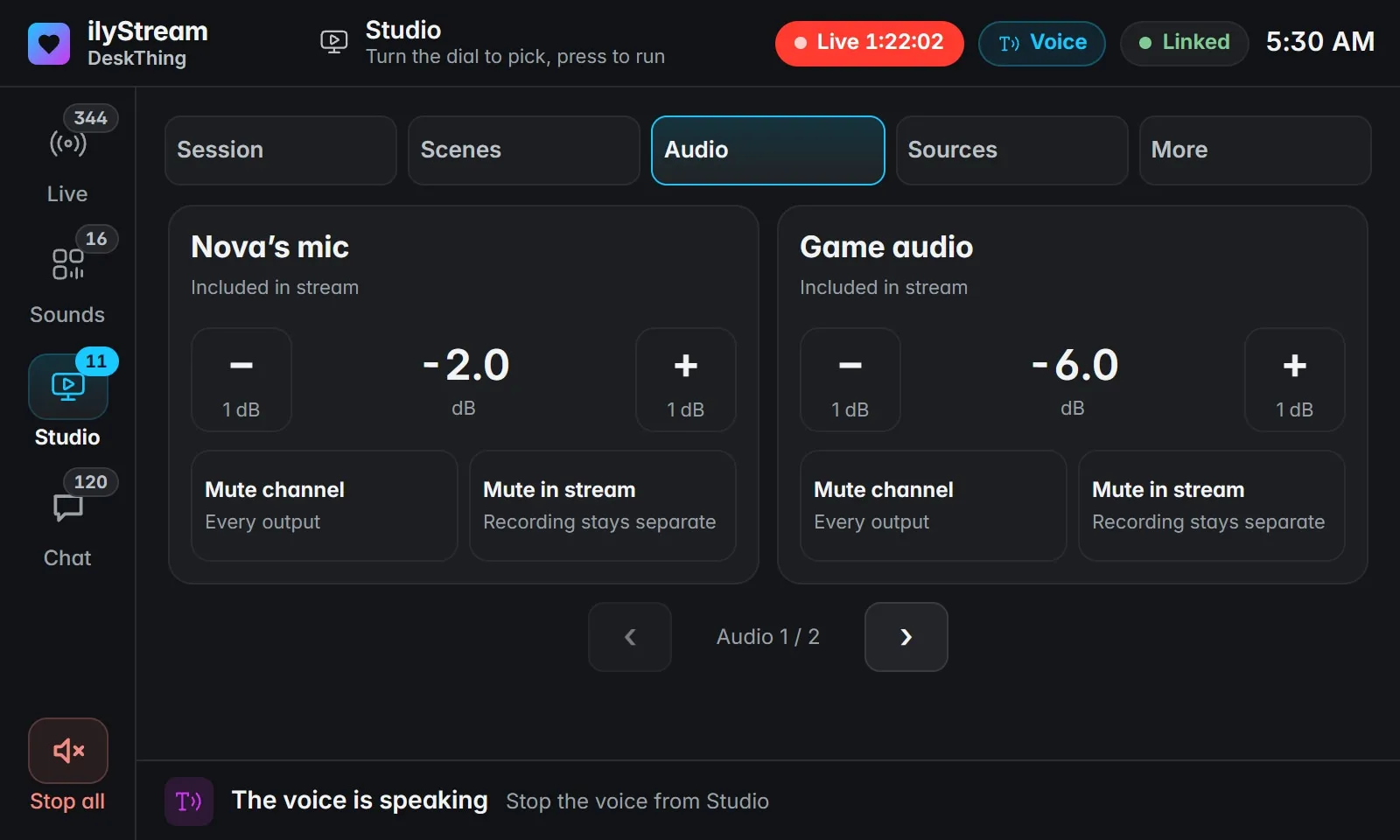
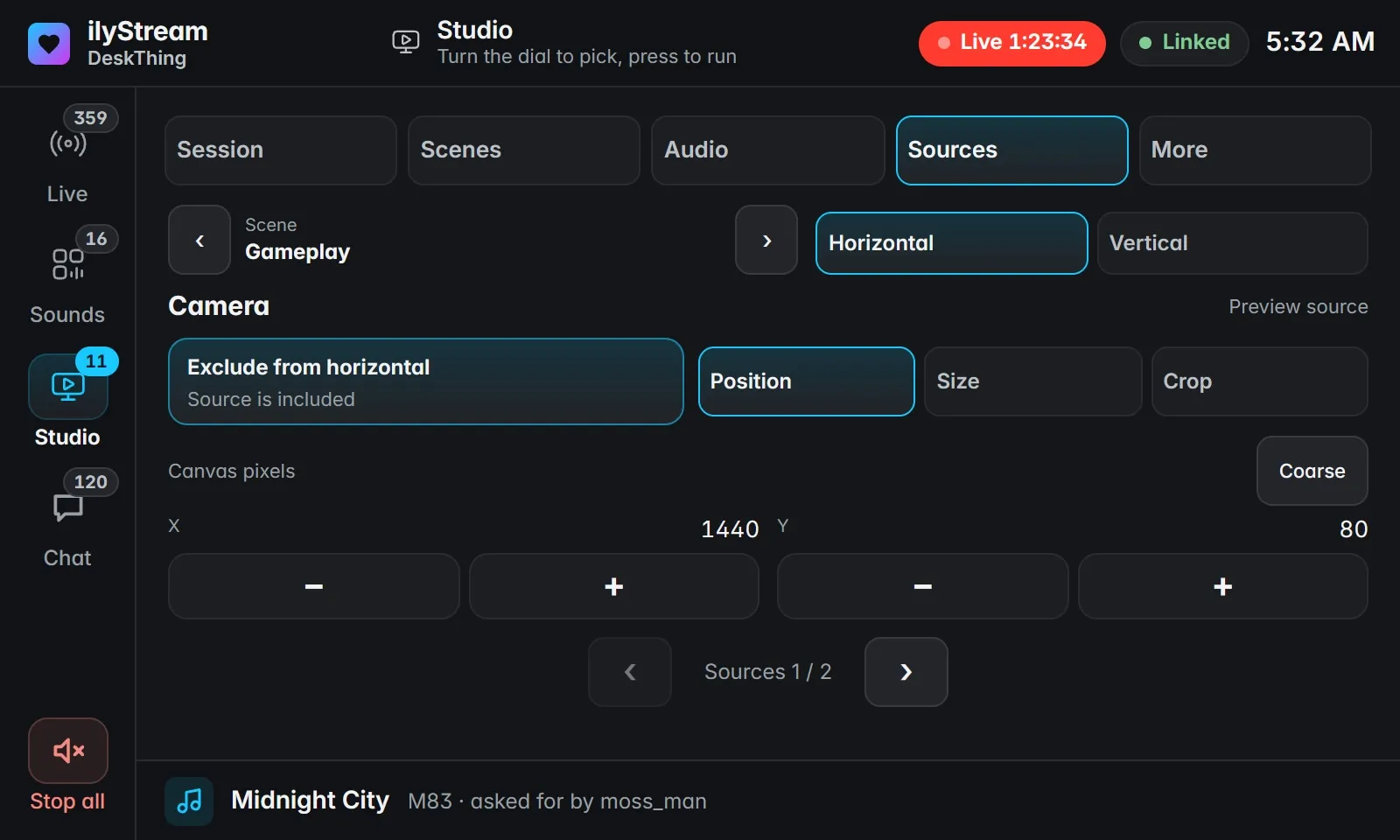
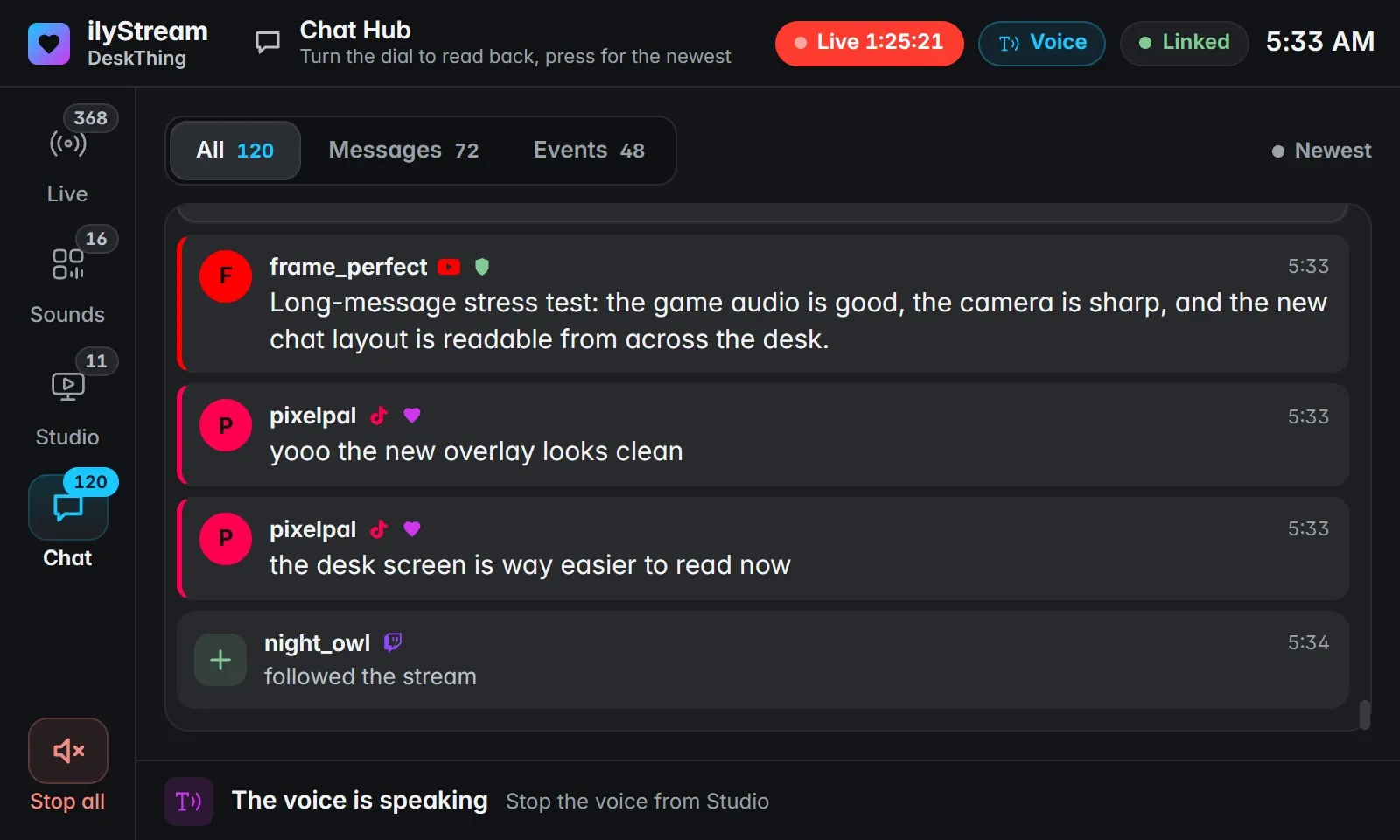
TikTok Like events are omitted from the Chat list so a burst of likes cannot displace readable messages. Aggregate Likes remain in the status statistics.
DeskThing button mappings can use Stop all sounds, Stop the voice, Start or stop recording, Pause or resume recording, Save replay, Take Preview, Cut Preview, Reload pads and scenes and Forget ilyStream.
Disconnect or recover
Section titled “Disconnect or recover”Other compatible control tools can use the v5 WebSocket server or native remote contract.
Tap the connection status in the companion to reconnect, reload its catalog or Forget this PC. To revoke a pairing from Windows, remove the device under Paired devices. A rejected token offers Pair again rather than retrying indefinitely. If the PC cannot be reached, check Remote control, the displayed address/port and that both sides are on the same network.
Build, protocol and browser checks cover the companion’s implemented paths; physical Car Thing operation remains a separate hardware check.