'/%3e%3cpath%20fill='%2305070d'%20d='M32%2044.5c-.9-.6-14-8.6-14-17%200-4.1%203.1-7.3%207-7.3%202.9%200%205.4%201.7%207%204.3%201.6-2.6%204.1-4.3%207-4.3%203.9%200%207%203.2%207%207.3%200%208.4-13.1%2016.4-14%2017z'/%3e%3c/svg%3e)
Set up Philips Hue
Connect → Hardware → Philips Hue turns stream events into lighting reactions across your room.
Before you start
Section titled “Before you start”You need a Philips Hue Bridge on the same local network as the PC running ilyStream.
1. Find your bridge
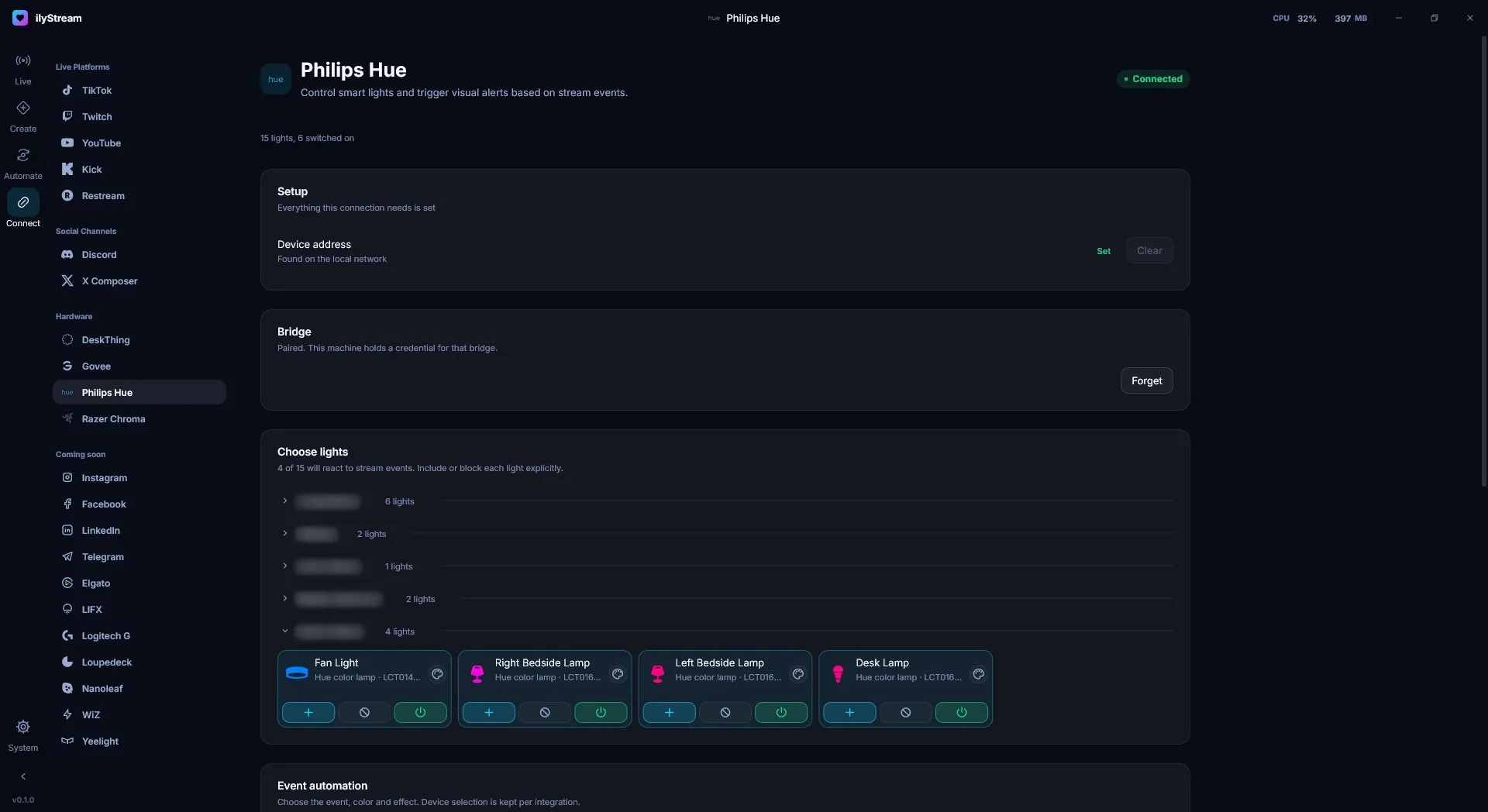
Section titled “1. Find your bridge”Under Setup, ilyStream looks for your bridge on the local network. When it’s found, Device address reads Set. Use Clear to forget the address and search again.
2. Pair with the bridge
Section titled “2. Pair with the bridge”Under Bridge, pair ilyStream with your bridge. Hue bridges only accept a new app after you press the round link button on top of the bridge, so have it within reach.
Once paired, the card reads Paired. This machine holds a credential for that bridge. Press Forget to remove that credential from this PC.
3. Choose your lights
Section titled “3. Choose your lights”Choose lights lists your lights grouped by room. Expand a room to see its lights. Each light has three buttons:
- Include — this light reacts to stream events.
- Block — this light never reacts.
- Power — switch the light on or off.
The summary at the top tells you how many lights will react, for example 4 of 15 will react to stream events.
4. Automate it
Section titled “4. Automate it”Under Event automation, choose the event, the color and the effect for each reaction. Device selection is kept per integration, so your Hue choices don’t affect other lighting.
Use the Event Lab (Automate → Event Lab) to fire a test event and watch your lights respond.