'/%3e%3cpath%20fill='%2305070d'%20d='M32%2044.5c-.9-.6-14-8.6-14-17%200-4.1%203.1-7.3%207-7.3%202.9%200%205.4%201.7%207%204.3%201.6-2.6%204.1-4.3%207-4.3%203.9%200%207%203.2%207%207.3%200%208.4-13.1%2016.4-14%2017z'/%3e%3c/svg%3e)
Find your way around
ilyStream keeps everything in one window. Once you know the three parts of that window, you can find any feature.
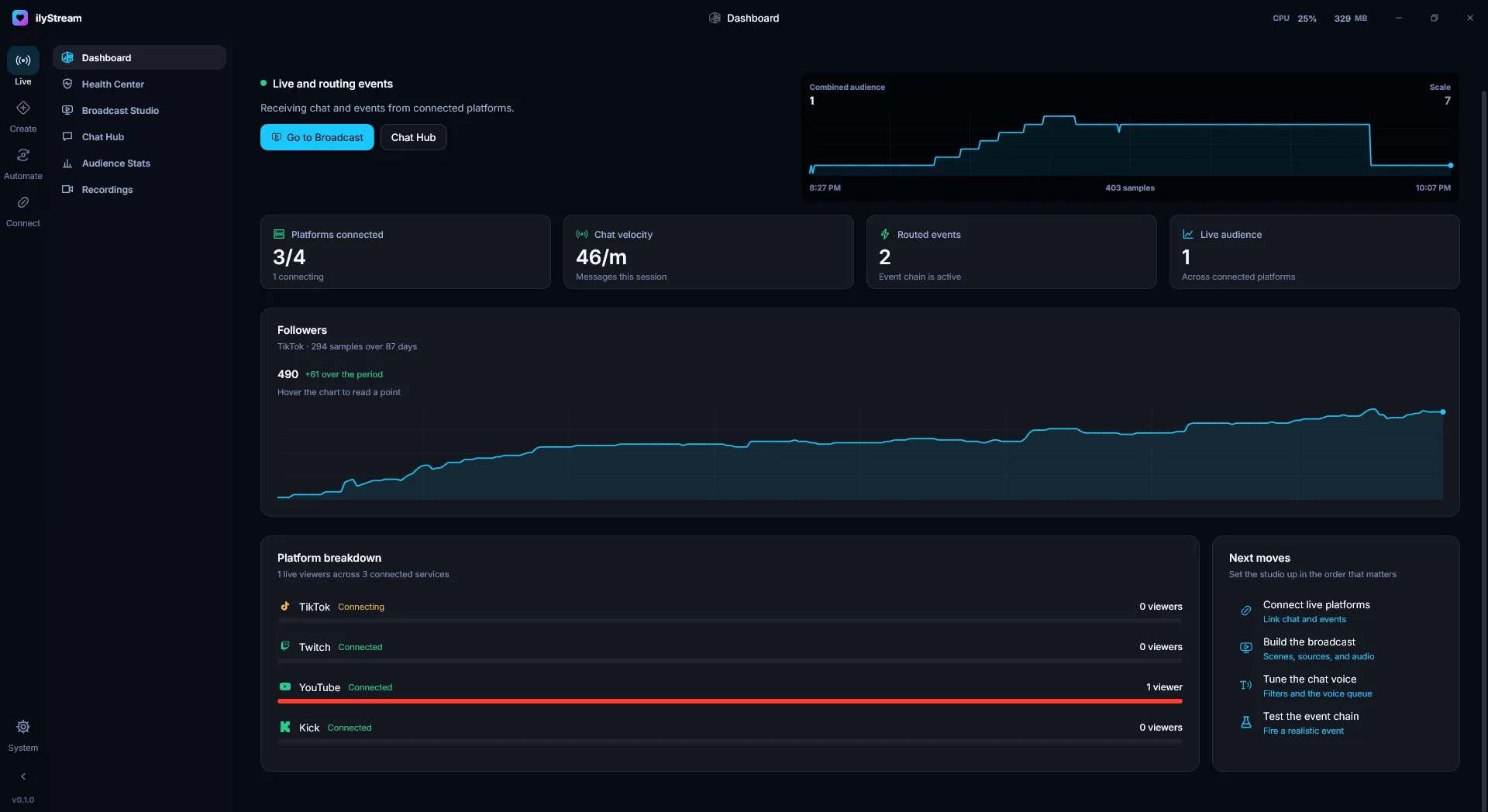
The navigation rail
Section titled “The navigation rail”The narrow rail on the far left switches between the five areas of the app:
- Live — running the stream.
- Create — what viewers see and hear.
- Automate — what happens on its own.
- Connect — platforms, community and hardware.
- System — settings and tools, pinned to the bottom of the rail.
The arrow at the very bottom of the rail collapses and expands the navigation. The version of ilyStream you’re running is shown under it.
The sidebar
Section titled “The sidebar”Each area has its own sidebar listing its pages:
| Area | Pages |
|---|---|
| Live | Dashboard, Health Center, Broadcast Studio, Chat Hub, Audience Stats, Recordings |
| Create | Overlays & Widgets, Alert Routes, Soundboard, Voice FX |
| Automate | Text-to-Speech, AI Co-Host, Automation Rules, Song Requests, Event Lab |
| Connect | Live Platforms (TikTok, Twitch, YouTube, Kick, Restream), Social Channels (Discord, X Composer), Hardware (DeskThing, Govee, Philips Hue, Razer Chroma), and integrations that are coming soon |
| System | Settings (Appearance, Themes, Broadcast Defaults, Network & Overlays, Startup & Shutdown, Files & Data, About ilyStream) and Tools (Points & Rewards, Console) |
The title bar
Section titled “The title bar”The title bar shows the page you’re on in the middle, and on the right a live readout of how much CPU and memory ilyStream is using — handy for keeping an eye on performance while you’re live.
Status pills
Section titled “Status pills”Many pages show a colored pill in the top-right corner that sums up their state at a glance — for example Connected on a hardware page, Reading for followers on Text-to-Speech, or Open · 0 waiting on Song Requests.