
Automatic scene switching
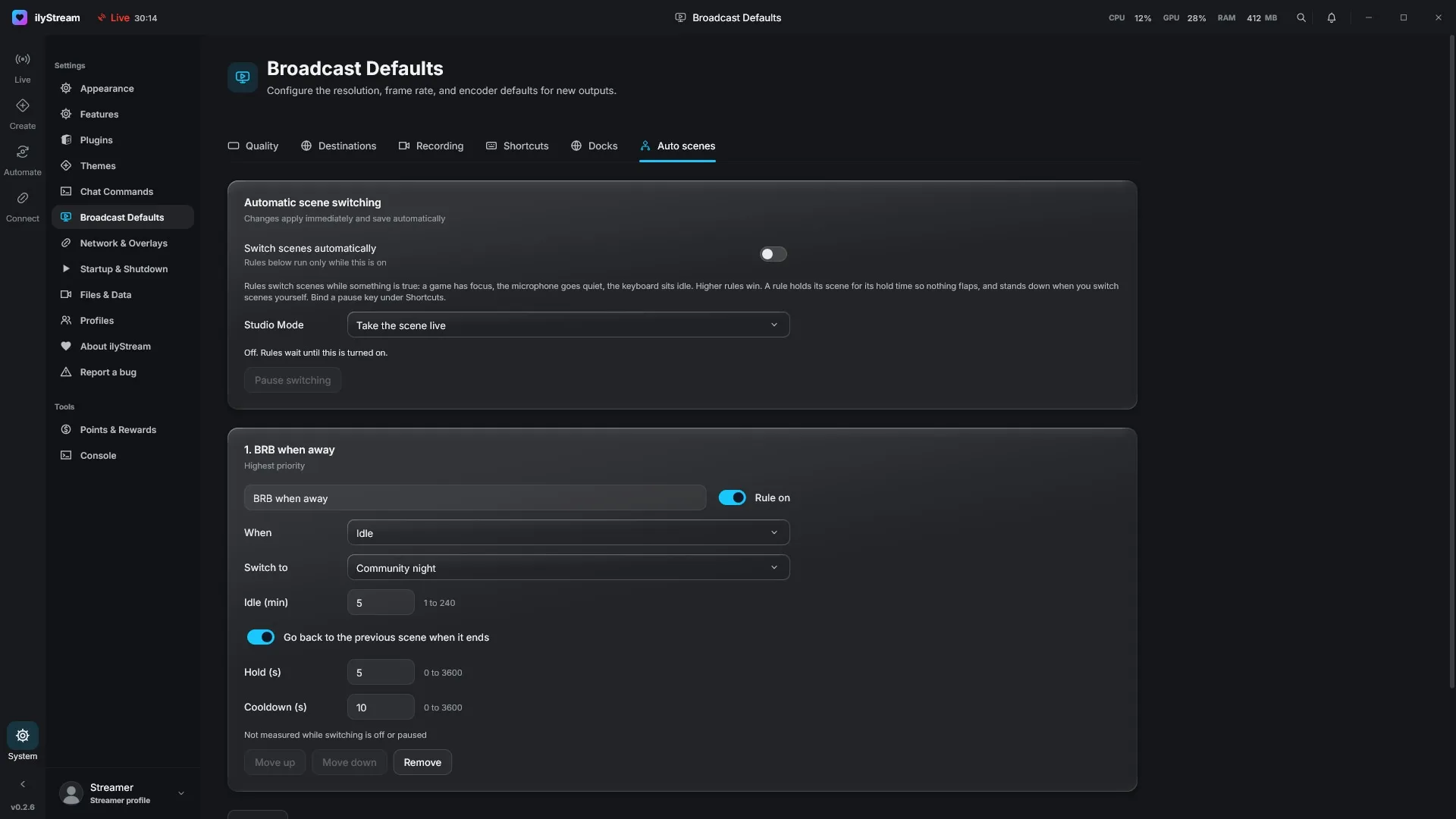
Open Settings > Broadcast Defaults > Auto scenes to build rules that select a scene automatically. Changes on this page apply immediately and save automatically. Keep the master switch off while arranging a new set of rules.
Choose the condition
Section titled “Choose the condition”| Condition | Example |
|---|---|
| Foreground application or game | Select Gameplay when the game is focused; match an executable, part of the window title or any recognized game. |
| Idle time | Select BRB after no keyboard or mouse input for the configured number of minutes. |
| Audio level | Change scenes when a named mixer channel stays above or below a threshold for the configured duration. |
| Time of day | Use a different scene during a local-time range, including a range across midnight. |
| Stream time | Change scenes once the stream has run for a specified number of minutes. |
| Output state | React to whether streaming or recording is running. |
Choose the target scene, arrange rules in priority order and set the hold time to prevent rapid changes. A rule can return to the previous scene when its condition ends. In Studio Mode, choose whether rules target Program or Preview; review that choice before broadcasting.
A manual scene change takes precedence: the active rule stands down until its condition ends and starts again. The page shows the last switch and its reason. Use pause when you want to take over, and test the rules with your actual games, audio routes and scene names before relying on them live.