
NDI and Spout video sharing
NDI and Spout bring another application’s video into a scene, or share ilyStream’s Program with another application. These are separate from a Windows virtual camera and do not need the Store virtual camera add-on.
| Route | Picture | Sound | Where it connects |
|---|---|---|---|
| NDI | Yes | Yes | Compatible senders/receivers on your local network. Requires an installed NDI runtime. |
| Spout | Yes | No | Compatible applications on the same Windows computer, using GPU texture sharing. |
Receive a source
Section titled “Receive a source”- Start the sender in the other application.
- In Broadcast Studio, choose Add source, then NDI or Spout.
- Select the sender and check its preview before applying.
- For NDI audio, check the source’s mixer channel and its output routes.
If no sender appears, check the sender and local/network setup. NDI reports a missing runtime in its source picker; follow that guidance before retrying. GPU and application compatibility affect Spout discovery and texture sharing.
Share Program
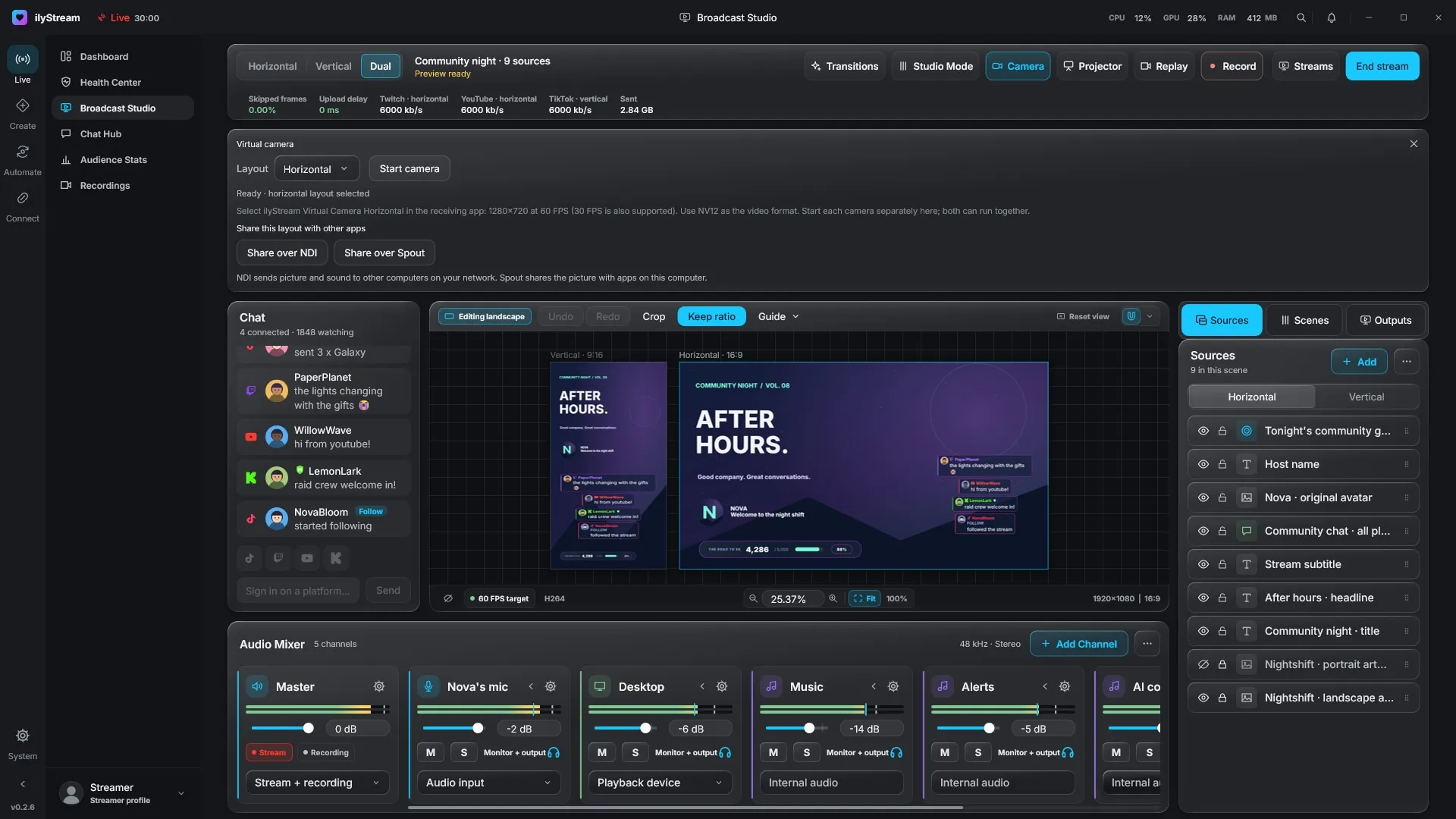
Section titled “Share Program”Open Camera in Studio, choose the horizontal or vertical layout, then use Share over NDI or Share over Spout under Share this layout with other apps. Each protocol and canvas has its own switch and status. Select the corresponding sender in your receiving application.
The default names distinguish ilyStream and ilyStream Vertical. Sharing choices are saved and resume with Studio, so switch a share off when finished. NDI reports receiver counts when available; Spout cannot report how many apps are watching. Check picture, orientation, frame rate and, for NDI, audio at the receiver before relying on the route during a broadcast.