
Text-to-Speech
Automate → Text-to-Speech controls who can speak, what gets filtered, and how chat messages enter the voice queue. The pill in the top-right corner sums up the current setting, for example Reading for followers.
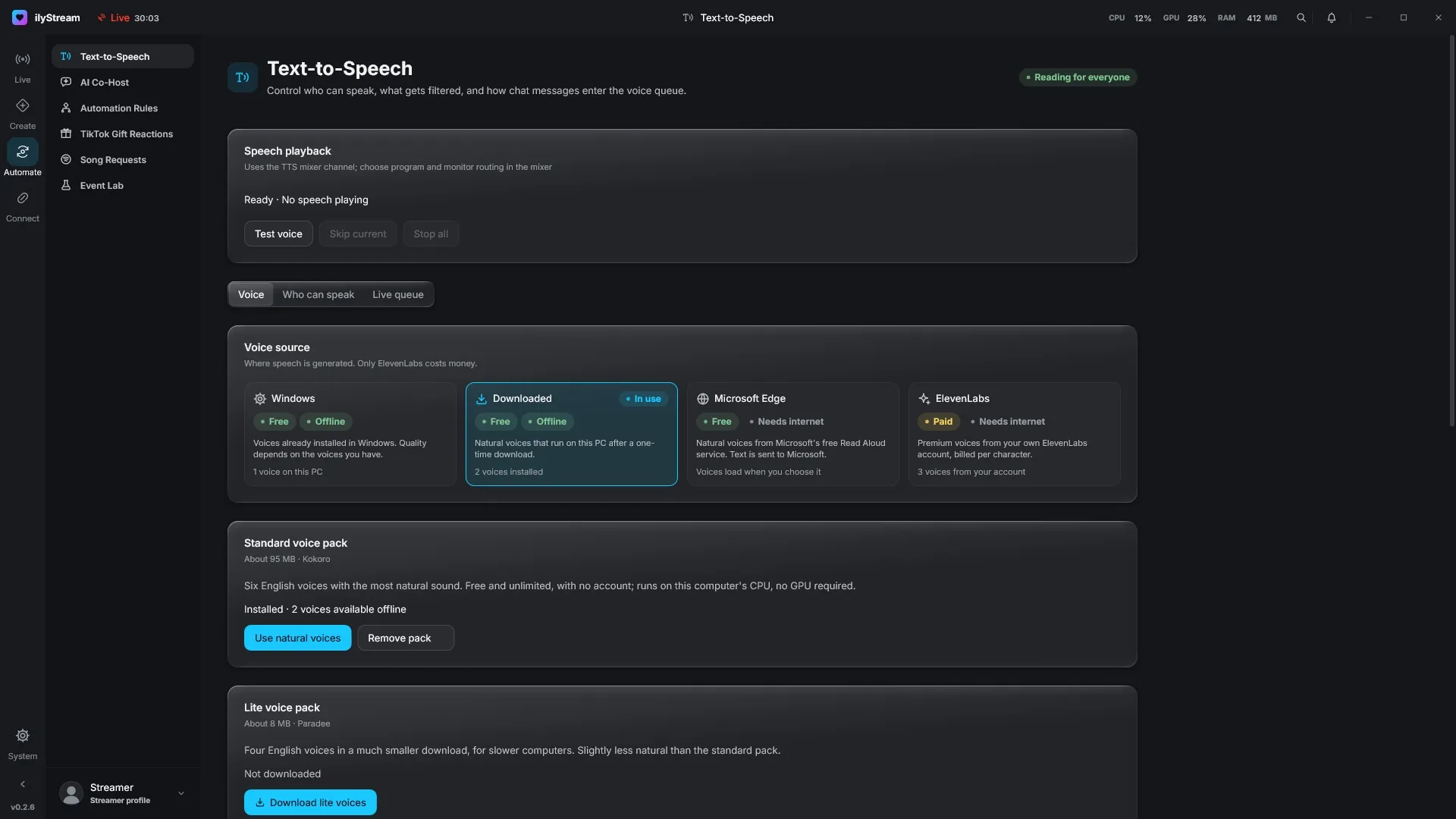
Choose Voice, Who can speak or Live queue to focus on setup, audience/filter rules or pending speech. The Live queue lets you skip an individual pending line; playback controls remain available across the views.
Notices
Section titled “Notices”The top of the page lists anything you should know about the current setup, such as:
- Messages leave this computer to be spoken by a network service — shown when you use a network voice such as ElevenLabs.
- Platform limitations — see Platform notes below.
Who may be read aloud
Section titled “Who may be read aloud”Pick one of Nobody, Followers, Subscribers, Moderators or Everyone.
Nobody is the off switch. Everything else is a floor, not a list: choosing Subscribers reads subscribers and everyone above them, such as moderators. Everyone reads all of chat.
Platform requirements
Section titled “Platform requirements”The shared choice is the default. Under Platform requirements, leave a platform on Default to inherit it or choose an independent audience. For example, allow Everyone on TikTok and Subscribers only on Twitch. YouTube labels this choice Members only. Choose Nobody to disable one platform’s viewer speech.
An explicit Subscribers only or Members only platform choice requires subscription or membership status; a moderator or VIP role alone does not meet it. TikTok fan level adds a minimum: 0 disables it, while a higher value requires TikTok to report at least that level. This combines with TikTok’s audience choice. Missing level information does not meet an enabled minimum.
Choose Apply and save to keep the requirements. Discard restores the saved choices.
Chat trigger
Section titled “Chat trigger”In Chat trigger, select a TTS prefix such as !, ., / or a
custom prefix. With a prefix enabled, ordinary messages without it are not
read. Add a space after it to speak command words: ! daily is speech, while
!daily remains a command. Off reads ordinary chat without a required
prefix; Skip commands then skips messages beginning with !.
Speech playback
Section titled “Speech playback”Speech runs through the Text-to-Speech mixer channel. Its output and monitoring settings control whether it reaches the stream, your headphones or both. Rate, pitch and other modifiers depend on the selected engine.
- Test voice plays a sample.
- Skip current skips the message being spoken.
- Stop all stops all speech.
Voice engine
Section titled “Voice engine”Choose where the speech is made, and what that costs you:
| Engine | Where speech is made |
|---|---|
| Windows | Installed Windows voices, free and local. |
| Downloaded | Standard Kokoro or lite natural voices on your CPU; free and offline after the pack download. |
| Microsoft Edge | Microsoft Read Aloud; no personal API key or per-message bill, but spoken text is sent to Microsoft and internet access is required. |
| ElevenLabs | ElevenLabs, a network service billed per character. Needs the network and an API key. |
ElevenLabs accounts
Section titled “ElevenLabs accounts”You can save one or more ElevenLabs accounts and use their voices:
- Enter an account name (for example Main or Character voices).
- Paste the account’s API key. It’s stored in Windows Credential Manager.
- Press Save account.
- Press Load voices to fetch that account’s voices.
Use Update key to replace a key, or Remove to delete the account from ilyStream. Spoken text is sent to ElevenLabs and uses that account’s credits.
Free natural voices
Section titled “Free natural voices”- In the Voice view, choose the Standard voice pack (about 95 MB, six English voices) or Lite voice pack (about 8 MB, four English voices for slower computers). Download controls include progress, cancel and retry.
- Press the installed pack’s Use action, choose a voice, then Test voice. The Downloaded source runs locally on the CPU after installation.
- Apply your voice settings. Speech profiles, per-viewer overrides, filters, queue limits and mixer routing still apply.
System voices need no pack. The on-device pack uses disk, RAM and CPU resources; free does not mean no hardware cost. Try the voices with your normal stream running before deciding which engine to use.
For Microsoft Edge, select that source explicitly, load its catalog and choose a voice. Catalog/service failures are shown with retry controls. Online access is not guaranteed; ilyStream keeps its local engines available and does not switch automatically to a billed provider. See the Microsoft Read Aloud integration for its data flow.
Online speech can begin playing while later audio is still arriving. The queue can also prepare one upcoming message silently to reduce gaps. Stop, Skip and policy changes cancel stale speech. Network and CPU performance still affect latency. Preparing an ElevenLabs line can use credits even if it is later skipped.
Platform notes
Section titled “Platform notes”- YouTube doesn’t tell apps who subscribes to a channel, so when you choose Followers or Subscribers, only YouTube members and moderators are read.
- Kick viewers are read once they follow during the stream.
Related
Section titled “Related”- AI Co-Host can speak with the same voices.
- ElevenLabs integration: what data it uses.