

ilyStream + Govee
Bring Govee lights into your stream setup.
What Govee does in ilyStream
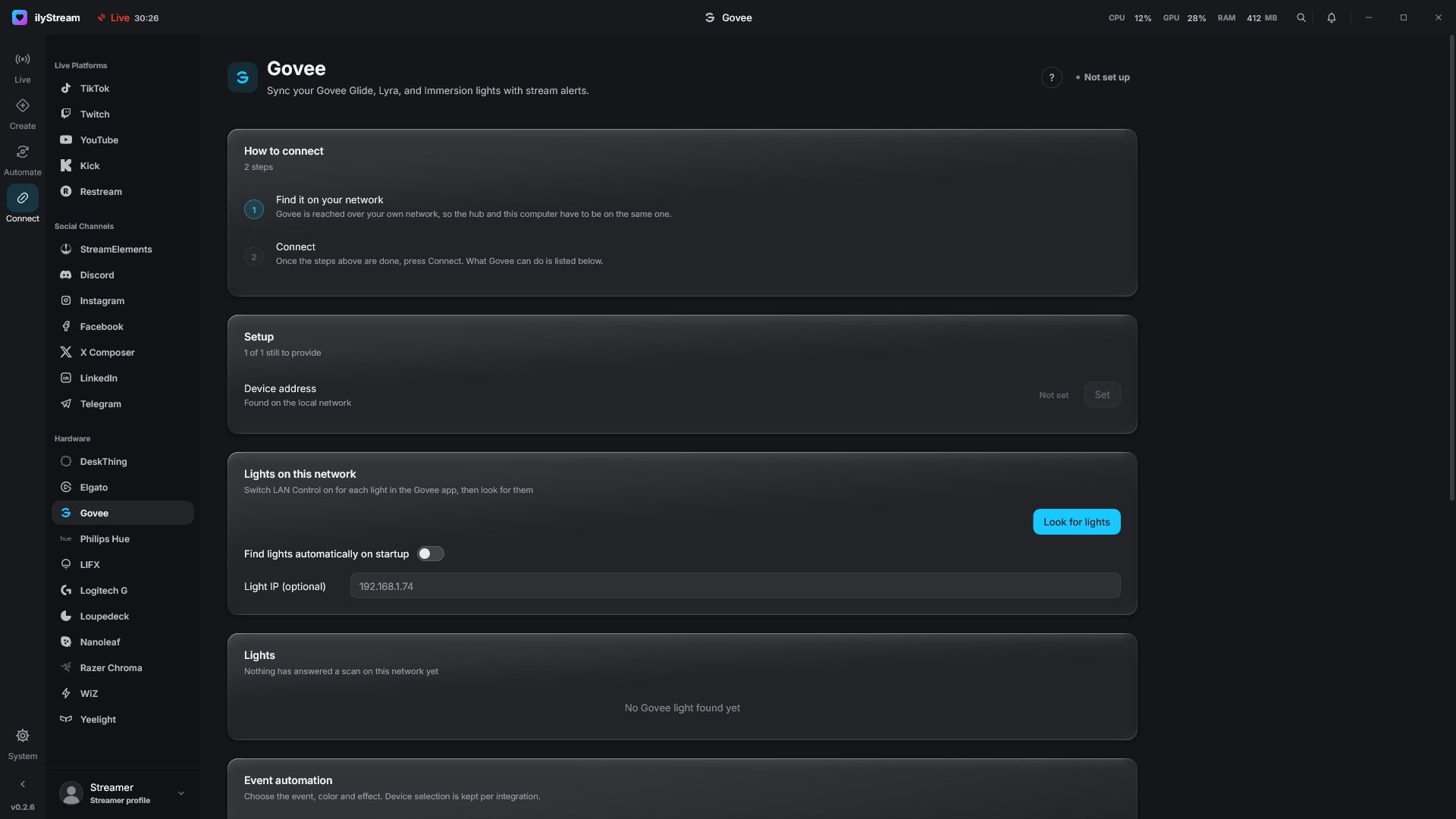
- Discover LAN-enabled Govee lights on the local network, or enter a light’s IPv4 address for direct discovery when multicast is blocked.
Where to find it
- 1Open ilyStream
Start from the app’s main navigation.
- 2Go to Connect → Hardware → Govee
The integration lives here in the current app.
- 3Connect or configure Govee
Use the controls on that page to finish the integration and choose how it behaves.
What it looks like
Philips Hue
Control smart lights and trigger visual alerts based on stream events.
Event colors and timing are shared across lighting integrations.
Razer Chroma
Synchronize your Razer peripherals with stream events via Chroma SDK.
Your default look returns after temporary alert effects finish.
Event colors and timing are shared across lighting integrations.
Govee
Discover and control Govee lights on your local network.
Event colors and timing are shared across lighting integrations.
Interactive website preview based on the current ilyStream hardware controls. It does not connect to your devices.
Current app screenshot
Data & privacy
How ilyStream handles data from connected services is described in the Privacy Policy.
ilyStream does not sell data from Govee. Questions or deletion requests: privacy@ilystream.app · Data requests
More lighting & hardware
 Logitech G
 Loupedeck
 Nanoleaf
 WiZ
 Yeelight
 DeskThing
Govee is a trademark of its owner. ilyStream is an independent product and is not affiliated with or endorsed by Govee.