

ilyStream + Logitech G
Control compatible peripheral lighting through the Logitech LED SDK.
What Logitech G does in ilyStream
- Connect to Logitech G lighting through its Windows LED SDK.
- Set power, brightness and RGB color; restore the previous lighting when you disconnect.
Where to find it
- 1Open ilyStream
Start from the app’s main navigation.
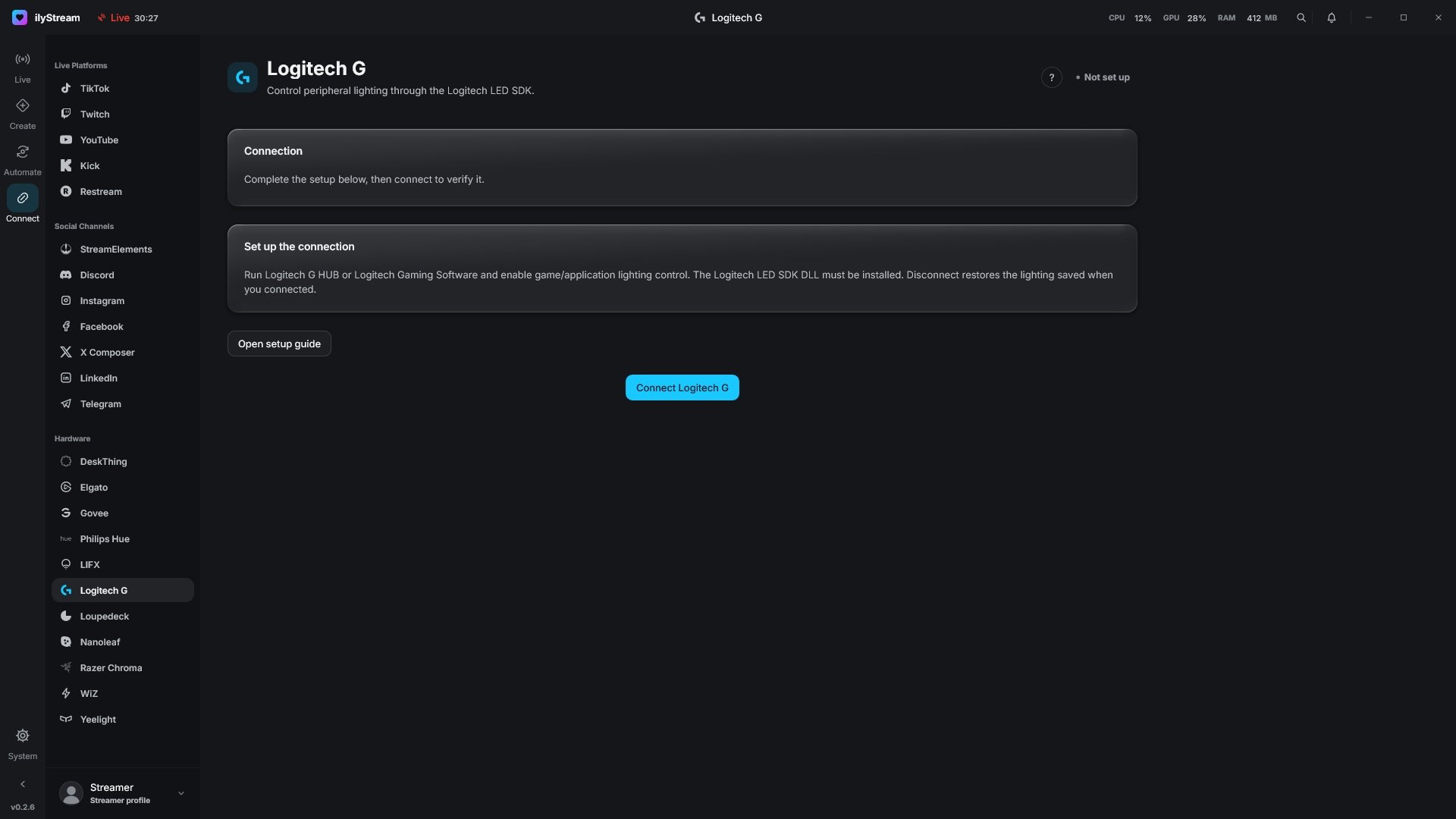
- 2Go to Connect → Hardware → Logitech G
The integration lives here in the current app.
- 3Connect or configure Logitech G
Use the controls on that page to finish the integration and choose how it behaves.
What it looks like
Good to know
Requires Logitech G HUB or Logitech Gaming Software with application lighting enabled and the LED SDK installed.
Data & privacy
- What ilyStream uses
- The lighting state of your connected Logitech G devices.
- Where it goes
- Lighting control runs through the Logitech LED SDK on your PC.
- Disconnect in ilyStream
Connect → Hardware → Logitech G → Disconnect
ilyStream does not sell data from Logitech G. Questions or deletion requests: privacy@ilystream.app · Data requests
More lighting & hardware
 Govee
 Loupedeck
 Nanoleaf
 WiZ
 Yeelight
 DeskThing
Logitech G is a trademark of its owner. ilyStream is an independent product and is not affiliated with or endorsed by Logitech G.