

ilyStream + Yeelight
Control a Yeelight bulb’s power, brightness and color over LAN.
What Yeelight does in ilyStream
- Connect to a Yeelight bulb by its local IPv4 address.
- Set power, brightness and RGB color from its connection page.
Where to find it
- 1Open ilyStream
Start from the app’s main navigation.
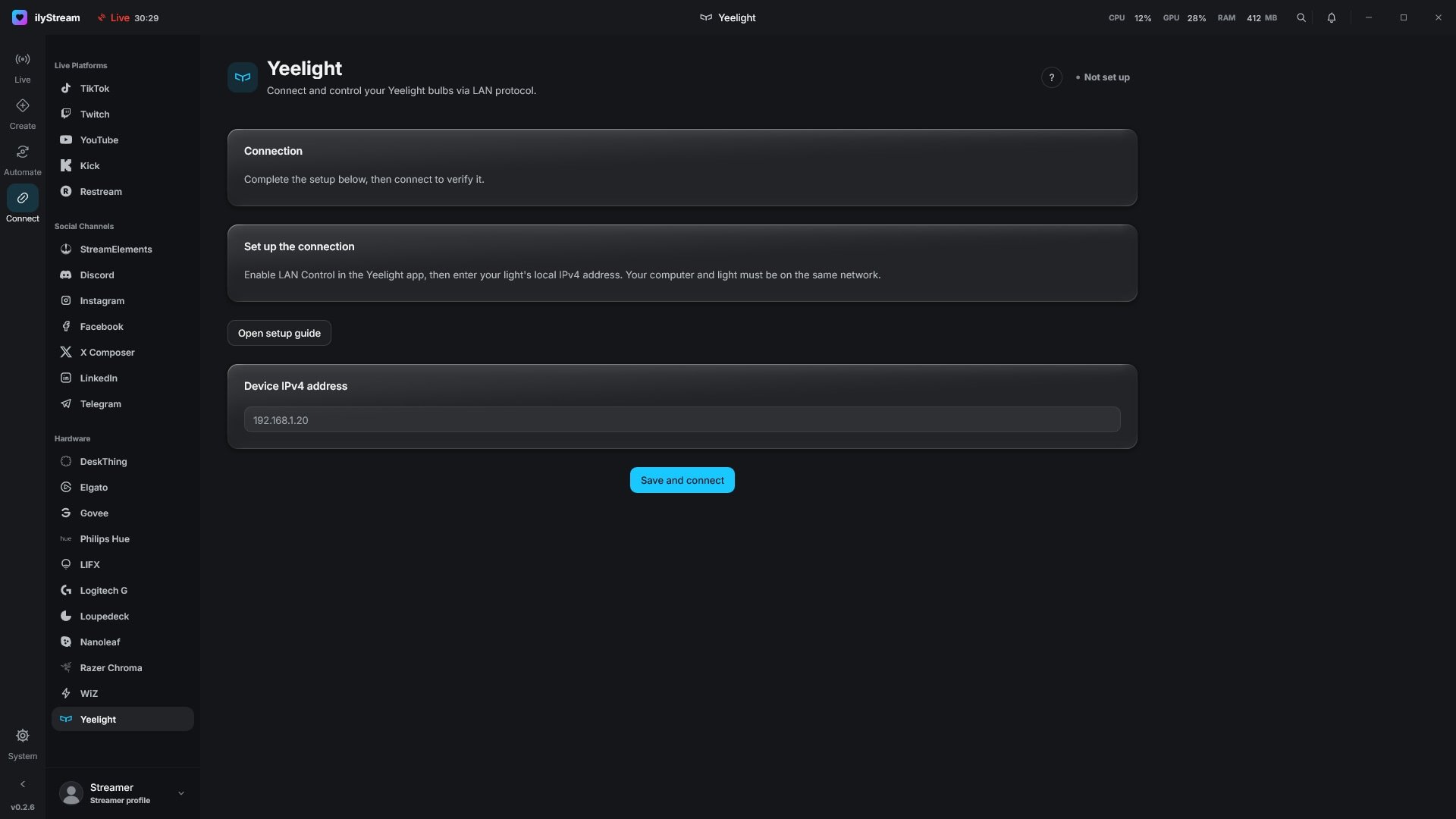
- 2Go to Connect → Hardware → Yeelight
The integration lives here in the current app.
- 3Connect or configure Yeelight
Use the controls on that page to finish the integration and choose how it behaves.
What it looks like
Good to know
Enable LAN Control in the Yeelight app first.
Data & privacy
- What ilyStream uses
- The bulb’s local address and lighting state.
- Where it goes
- Lighting commands go from your PC to the bulb on your local network.
- Disconnect in ilyStream
Connect → Hardware → Yeelight → Disconnect or Forget saved setup
ilyStream does not sell data from Yeelight. Questions or deletion requests: privacy@ilystream.app · Data requests
More lighting & hardware
 Govee
 Logitech G
 Loupedeck
 Nanoleaf
 WiZ
 DeskThing
Yeelight is a trademark of its owner. ilyStream is an independent product and is not affiliated with or endorsed by Yeelight.