'/%3e%3cpath%20fill='%2305070d'%20d='M32%2044.5c-.9-.6-14-8.6-14-17%200-4.1%203.1-7.3%207-7.3%202.9%200%205.4%201.7%207%204.3%201.6-2.6%204.1-4.3%207-4.3%203.9%200%207%203.2%207%207.3%200%208.4-13.1%2016.4-14%2017z'/%3e%3c/svg%3e)
Broadcast Studio
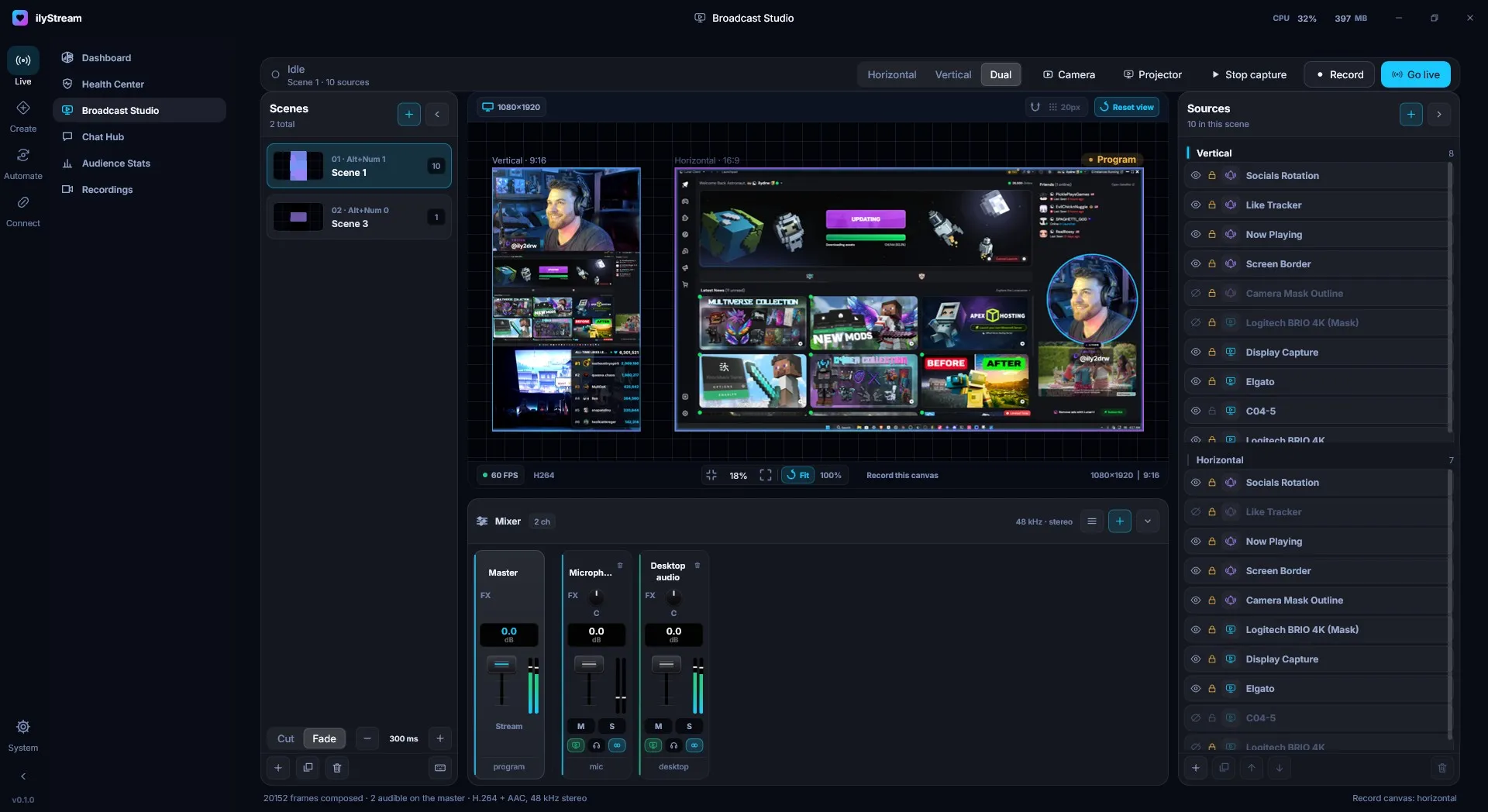
Live → Broadcast Studio is where you compose what viewers see, then record or go live.
Layouts
Section titled “Layouts”The switch in the top bar picks the layout:
- Horizontal — a 16:9 canvas.
- Vertical — a 9:16 canvas.
- Dual — both canvases side by side, each with its own sources.
Dual is useful when you create for both landscape and portrait platforms: you arrange each canvas for its audience in one place, without keeping two apps in sync.
The top bar
Section titled “The top bar”| Control | What it does |
|---|---|
| Status | Shows whether you’re idle or live, the current scene, and how many sources it has. |
| Camera | Camera controls. |
| Projector | Opens a projector view of your output. |
| Stop capture | Stops capturing. |
| Record | Starts recording. |
| Go live | Starts your stream. |
Working on the canvas
Section titled “Working on the canvas”Above the canvas you’ll find the canvas resolution (for example 1080×1920), a snap toggle with its grid size, and Reset view.
Below the canvas:
- Zoom — the current zoom, Fit to fit the canvas in the window, and 100% for actual size.
- Record this canvas — choose which canvas is recorded. The status bar shows the result, for example Record canvas: horizontal.
- Resolution and aspect of the selected canvas, and the output frame rate and codec (for example 60 FPS and H264).
The status bar
Section titled “The status bar”The bottom of the studio reports how many frames have been composed, how many channels are audible on the master, and the output format — for example H.264 + AAC, 48 kHz stereo.
Related
Section titled “Related”© 2026 ilyStream